La Clé de diffusion en continu® 4K Roku® (modèle 3820) prend en charge les formats suivants : HD 720p, HD intégrale 1080p, 4K Ultra HD (4K) et HDR (imagerie à grande gamme dynamique). Elle vient avec une télécommande vocale Roku pour la télé. Dans cet article, vous découvrirez plus en détail votre Clé de diffusion et comment la configurer.
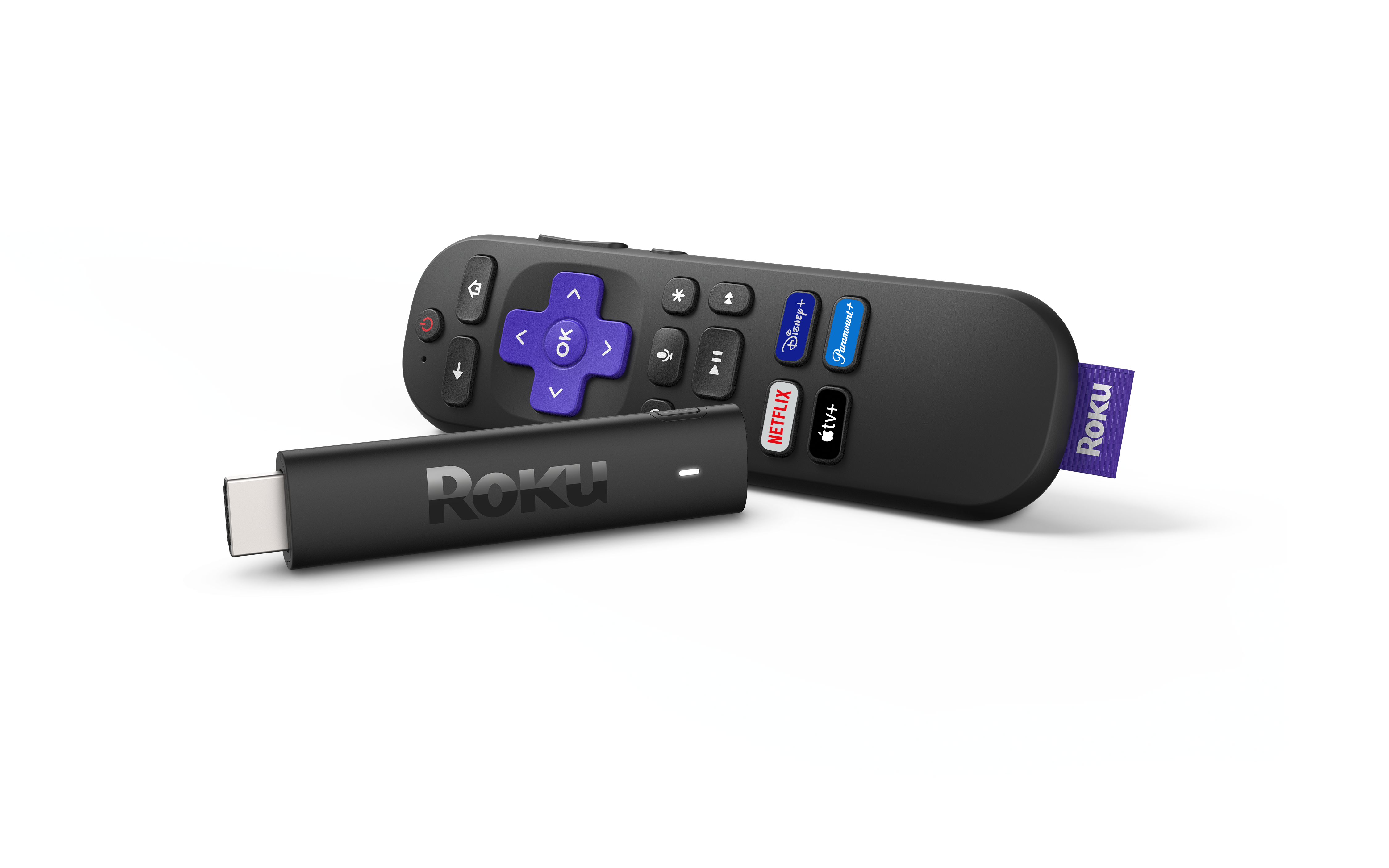
 Streaming Stick 4K de Roku (modèle 3820)
Vérifier la compatibilité du téléviseur
- Vérifiez si votre téléviseur est doté d’un port HDMI®.
- La Clé de diffusion en continu 4K fonctionnera avec n’importe quel téléviseur doté d’un port HDMI.

Note: If your TV does not support 4K or HDR, the Roku streaming player will still work, but you will not see 4K or HDR picture quality.
Étape 1 : Connecter la Clé de diffusion Roku au téléviseur
- Plug the Roku Streaming Stick 4K into an available HDMI port on your TV
- If there is not enough space for the stick to fit, request a free HDMI extender cable from Roku
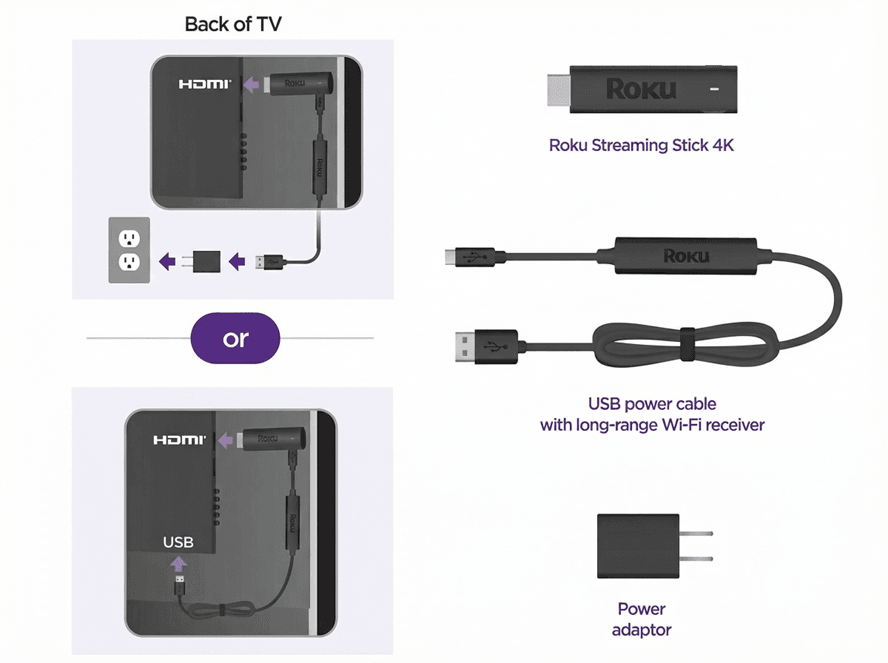
Étape 2 : brancher votre appareil à une source d’ alimentation
- Use only the USB power cable that came with your Roku Streaming Stick 4K. The long-range Wi-Fi® receiver is built into this cable, and using another cable may prevent the device from turning on (error 022)
- Connect the USB cable to one of these options:
- Wall outlet (recommended): Use the included power adapter
- USB port on TV: This may work on some TVs, but many do not supply enough power. If you see a warning message, switch to the wall outlet
Étape 3 : Allumer et sélectionner l’entrée
- Power on your TV with the TV remote
- Select the HDMI input where your Roku Streaming Stick is connected
- If you do not see the Roku welcome screen, check that:
- The device is firmly plugged into HDMI
- The USB power cable is connected and the outlet is supplying power
- You have selected the correct TV input
Étape 4 : Configurer votre télécommande Roku
- Follow the on-screen pairing instructions.
- If the remote does not pair:
- Replace the batteries
- Restart your Roku device by unplugging it and plugging it back in
- Manually pair the remote by pressing the pairing button either on the back of the remote or under the battery cover. You can also press the Back
 and Home
 buttons for 5 seconds. Learn more about pairing.
Étape 5 : Se connecter à Internet
- Choose your preferred language
- Select wireless and choose your home Wi-Fi network. Enter your password to connect.
- If the connection fails, double-check your Wi-Fi password, restart your router, or move the Roku closer to the router. Learn how to troubleshoot Wi-Fi.
Étape 6 : Installer les mises à jour
- After connecting to the Internet, your Roku device will automatically check for software updates
- Wait for the updates to finish installing
- For TVs that support 4K or HDR, make sure all connections support HDCP 2.2
- Select the Set Display Type option to allow Roku to match the best resolution for your TV
Étape 7 : Configurer des commandes du téléviseur sur votre télécommande Roku (facultatif)
- If you are using a Roku voice remote with TV controls, on-screen setup steps will appear.
- Follow the instructions to allow the Roku remote to control your TV’s power and volume. Certain Roku remotes released in 2017 and later include this feature.
- Some TVs may only support volume control
Dernière étape : Activer votre compte Roku
- Follow the on-screen instructions to activate your Roku device
- You will be given a link code. On a separate device (phone, tablet, or computer), go to the website shown and enter the code.
- Sign in with your Roku account, or create one if you do not already have one. Learn how to link or activate your Roku account if you need help.
- Roku accounts are free. Roku does not charge activation fees.
Commencez à regarder en streaming!
Une fois la configuration terminée, votre Clé de diffusion en continu 4K Roku est prête à être utilisée.
Personnalisez votre appareil en ajoutant des chaînes de streaming, en définissant des thèmes ou en modifiant votre écran de veille.
Foire aux questions
La Clé de diffusion en continu 4K Roku fonctionnera-t-elle avec n’importe quel téléviseur?
Oui, à condition que votre téléviseur ait un port HDMI. Pour utiliser les fonctionnalités 4K ou HDR, votre téléviseur doit les prendre en charge.
Puis-je alimenter le lecteur Roku en le branchant sur un port USB de mon téléviseur?
Certaines télés fournissent suffisamment de courant, mais pas toutes. Si vous voyez un message d’avertissement, branchez l’appareil Roku dans une prise murale à l’aide de l’adaptateur fourni.
Que faire si mon lecteur Roku n’affiche rien sur le téléviseur?
Vérifiez la connexion HDMI et assurez-vous que vous avez sélectionné la bonne entrée TV et que l’appareil est alimenté à l’aide du câble USB d’origine. Découvrez quoi faire si vous ne voyez pas l’image de votre lecteur.
Puis-je contrôler ma télé avec la télécommande Roku?
Oui, si vous avez une télécommande vocale Roku avec commandes de la télé. Certains téléviseurs prennent seulement en charge le réglage du volume, tandis que d’autres le prennent en charge en plus de l’activation de la télé.
Last updated at 3/3/2026 2:17:56 AM
Cet article a-t-il été utile ?
Articles similaires
Vous avez encore besoin d’aide ?

Assistance par un agent
Nous proposons une assistance par un agent pour certains problèmes et certains appareils.
Vérifier les options d’assistance