A factory reset erases most of the data from your Roku device and restores it to a factory default configuration. Specifically, the process will:
- Erase your personal preferences
- Unlink your device from your Roku account, removing all apps and account information.
- Reset all settings and return your device to a state ready for initial setup
Before you factory reset
Your Roku device won’t be able to stream until you complete the Guided Setup again. Make sure you have the following on hand before you start:
- Your Roku account email and password. The device must be linked to a Roku account during Guided Setup. If your TV or player is linked to someone else's account (for example, a family member or a previous owner), you will need that person's email and password. Without them, the device cannot be activated.
- Your Wi-Fi network name and password
- Sign-in details for your streaming apps (Netflix, Disney+, Max, and any others you use). Apps will need to be reinstalled and you will need to sign in to each one.
- Your parental control PIN, if one is set on your Roku account
If you do not have this information available, wait to factory reset until you do.
If you are able to control your Roku device, you can perform a factory reset from the Settings menu. If you cannot control your device or it is completely unresponsive, you can perform a factory reset using the physical Reset button on the device.
From the Settings menu
Perform the following steps with your Roku remote or the Roku mobile app.
Press Home
 on your Roku remote
Scroll and select Settings
Select System
Select Advanced system settings
Select Factory reset
If you have a Roku TV, select Factory reset everything. Otherwise, move to the next step
Follow the on-screen instructions
Using the physical button on TVs
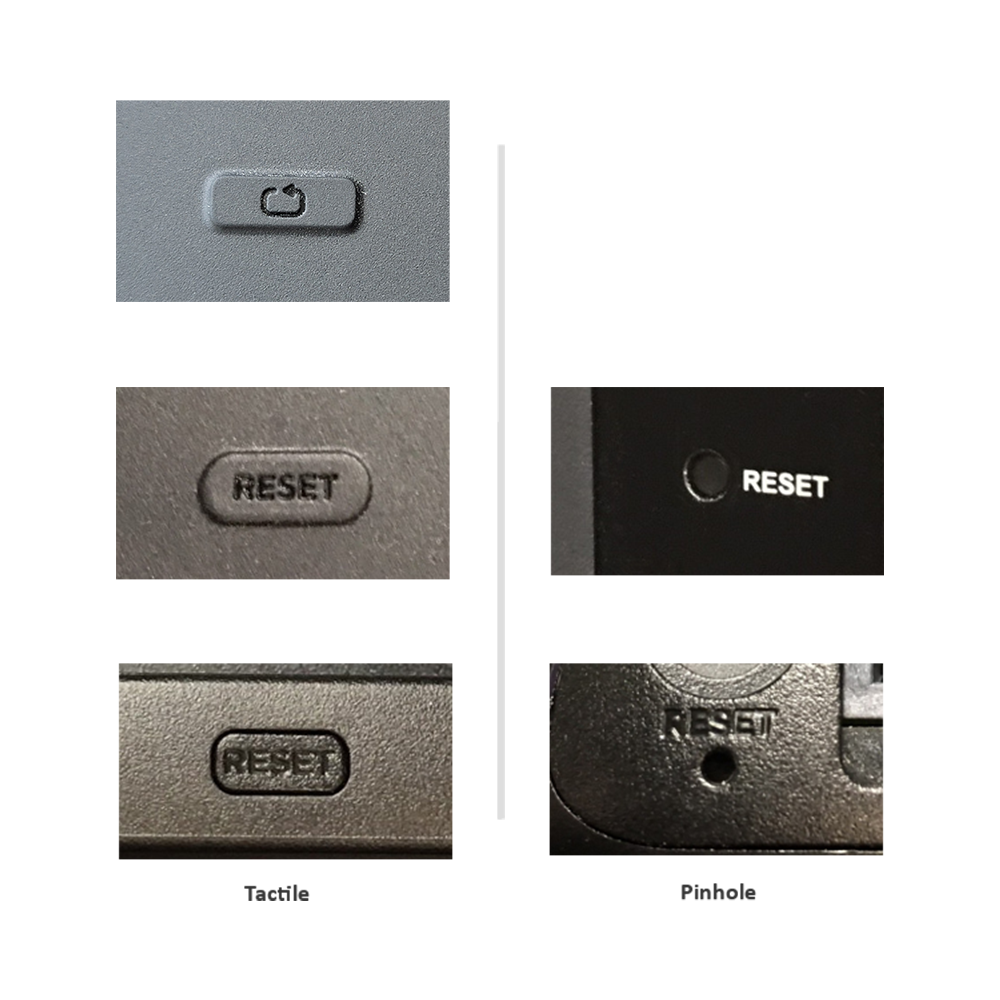
Locate the physical Reset button on the back of your streaming player. Some Roku TV models have a physical Reset button, while others reset using the Power and Find My Remote buttons together.
- Pro Series: No reset button; hold Power + Find My Remote buttons on the side for 12 seconds.
- Plus Series: Some older models have a pinhole reset (hold 12 seconds); newer ones use Power + Find My Remote on the back (hold 12 seconds).
- Select Series (HD/4K): Early models include a reset button while older models do not. If available, hold Reset for 12 seconds. If no reset button, use Power + Find My Remote for 12 seconds.
When the factory reset is complete, an indicator light or status LED will blink rapidly on most Roku devices. After a successful factory reset, your Roku device will restart in the same state as a factory-new device, and will be ready for you to complete the following:
Perform the Guided Step and activation process
Sign in to streaming apps that require a username and password
Create a 4-digit PIN and configure parental control settings
Perform a broadcast television channel scan (if you have a Roku TV with an HDTV antenna connected)
Use Recovery Mode
If you have a Roku TV, you can try using Recovery Mode to reinstall the operating system. Be aware that this is the most invasive reset method and should only be attempted when all other methods fail to restore normal operation. For detailed help, learn how to use Recovery Mode on your Roku TV.
Last updated at 5/15/2026 4:20:21 PM
Was this article helpful?
Related articles
Need more help?
