This article covers what to do when your Roku remote isn’t responding, whether button presses are delayed, or volume/power controls aren’t working. First, find out what type of remote you have.
Simple remote or voice remote?
First, check which type of Roku remote you have.
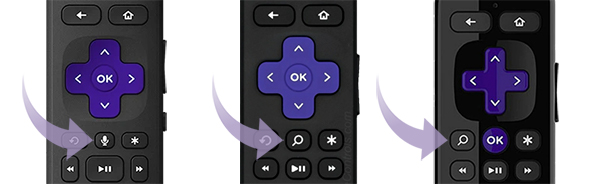
- Simple remote: No voice/mic button. Uses infrared (IR). Needs to point directly at your Roku device.
- Voice remote: Has a microphone or magnifying glass button. Some voice remotes also connect to your Roku device using wireless signals (not infrared), so you don’t have to point them directly at the device.
Fix a Roku simple remote
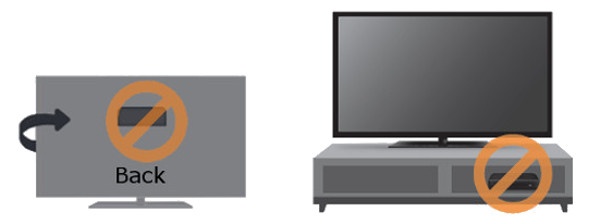
- Check line of sight: Simple remotes need a clear path to the Roku device.
- Make sure nothing blocks the front of the device
- Don’t hide your Roku device behind a TV or in a cabinet
- Try pointing the remote from different angles
Change the batteries:
- Remove old batteries
- Press any two buttons to reset the remote
- Insert a fresh matching pair of batteries
- Replace the battery cover
Remote feels hot?
- Stop using it immediately
- Do not remove batteries if they’re hot
- Place the remote on a hard, non-flammable surface, like tile
- Let it cool before handling again
Fix a Roku Voice Remote
How to Restart your Roku Remote
If your remote uses batteries:
- Restart the remote: If your remote uses batteries
- Remove both batteries
- Press any two buttons
- Reinsert batteries (negative end first)
- Replace the cover
If your remote is rechargeable:
- If your remote has one, hold the Pairing button for 20 seconds
- If no pairing button, press and hold Back + Home for 20 seconds
- Wait for the light on your remote to stop flashing
Recharge the remote (if rechargeable)
- Use the cable that came with the remote
- Plug into USB power or computer
- Charge for at least 5 hours
Check battery level:
- Go to Settings > Remotes & Devices > Remotes > Your Remote > About
Restart your Roku device
- Unplug your Roku player from power
- Wait 5 seconds
- Plug it back in and wait for the Home screen
Replace or recharge batteries
- If buttons still don’t respond well, try replacing or recharging the batteries fully.
Re-pair the remote
- Restart your Roku TV or player
- With pairing button: Hold for 5 seconds until light flashes.
- Without pairing button: Hold Back + Home for 5 seconds until light flashes.
- Wait for the pairing message on screen
- Restart your Roku TV or player
If your remote is rechargeable:
-
- If your remote has one, hold the Pairing button for 20 seconds
- If no pairing button, press and hold Back + Home for 20 seconds
- Wait for the light on your remote to stop flashing
- Recharge the remote (if rechargeable)
- Use the cable that came with the remote
- Plug into USB power or computer
- Charge for at least 5 hours
Check battery level
Go to Settings > Remotes & Devices > Remotes > Your Remote > AboutRestart your Roku device
Unplug your Roku player from power
Wait 5 seconds
Plug it back in and wait for the Home screen
Replace or recharge batteries
If buttons still don’t respond well, try replacing or recharging the batteries fully.
How to Pair your Roku Remote
Restart your Roku TV or player
- With pairing button: Hold for 5 seconds until light flashes.
- Without pairing button: Hold Back + Home for 5 seconds until light flashes.
Wait for the pairing message on screen
Fix Volume & Power Problems (voice remote only)
If you are experiencing volume or power issues with your voice remote, follow the steps below.
Roku remote volume not working?
- Try pointing the remote directly at the TV’s sensor, which is located in the front of the TV.
- If that works, your remote uses IR.
- If doing this doesn't work, try enabling CEC on your TV and redo the Roku remote set-up.
Both buttons not working?
- Update Roku software:
- Go to Settings > System > System Update > Check Now.
- Then, set up the remote again:
- Settings > Remotes and Devices > Remotes > Set up remote for TV control
Voice commands not working?
- CEC (Consumer Electronics Control) lets your Roku remote send power and volume commands to your TV. Check if CEC is enabled on your TV, or reach out to the manufacturer for help.
- Voice commands like “Turn off the TV” only work with CEC, not IR remotes.
Other troubleshooting
Remote still showing low battery?
- Reboot the remote (see above).
- Remove batteries or disconnect charging.
- Disable unused remotes by removing their batteries or holding Back + Home + Mute for 5 seconds.
Have a Roku Streaming Stick?
- Use the included wireless receiver (part of the USB power cable)
- Get a free HDMI extender to reduce interference
Can I connect my Roku device to Wi-Fi without a remote?
No, you need a Roku remote to connect your Roku device to Wi-Fi. You can purchase one in the .
If remote is hot to the touch
- Stop using it right away
- Don’t touch the batteries
- Let it cool on a non-flammable surface
- Contact Roku support if your remote doesn't cool down
If none of these steps help, consider using the Roku Mobile app as a remote while you contact Roku support. Learn what to do if you have lost your Roku remote.
Last updated at 4/1/2026 1:34:05 PM
Was this article helpful?
Related articles
Need more help?
