Ativar o sistema Roku TV™ garante que ele esteja executando a versão mais recente do software Roku® OS. Sempre que o sistema Roku TV estiver conectado à internet, ele verificará se há atualizações de software a cada 24 a 36 horas. Quando uma nova versão estiver disponível, ela será baixada e instalada automaticamente, sem interromper o uso da TV. Você também pode verificar manualmente se há novas atualizações de software.
Se o seu sistema Roku TV estiver não conectado à internet, as atualizações de software devem ser feitas manualmente, baixando primeiro um arquivo no seu computador, copiando-o para um pendrive e, em seguida, conectando esse pendrive à sua TV.
Como atualizar o software se você não ativou o sistema Roku TV
As instruções a seguir pressupõem que você não ativou o sistema Roku TV e que selecionou Conectar-se à internet depois durante o processo inicial de configuração e ativação. Para atualizar o software manualmente, você precisa de um pendrive USB 2.0 padrão com 256 MB ou mais. Você também precisa alternar entre o computador (não o smartphone) e a TV, conforme detalhado abaixo.

Note: Some Roku TV systems require an internet connection to complete setup.
Baixe o arquivo de atualização no computador.
- Open a web browser and go to tvupdate.roku.com.
- Choose the brand of your Roku TV system (e.g., TCL).
- Enter your Roku TV Hardware ID and Serial Number. The Hardware ID appears as 4 numbers followed by a letter and the Serial Number is a combination of 12 numbers and/or letters. To find this information, go to Settings > System > About on your TV.
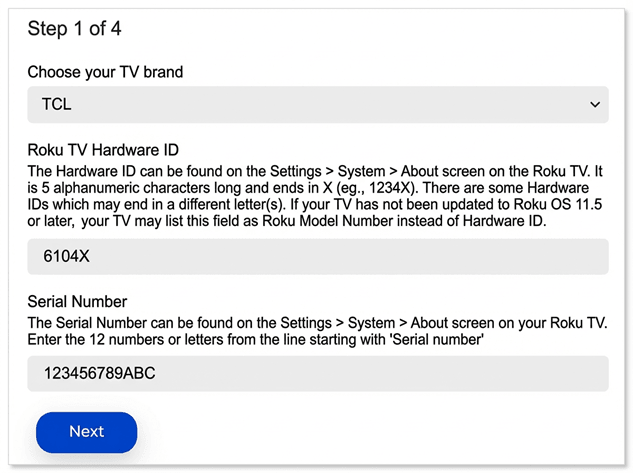
- Select Download Software to get the update.roku installer file downloaded to your computer.
- Locate the update.roku file on your computer. By default, it is often in a Downloads folder.
- Insert the USB flash drive and copy the update.roku file to the flash drive. Do not put it in a subfolder.
Quando a transferência estiver concluída, remova o pendrive do seu computador e conecte-o à TV.
Conecte o pendrive à sua TV
- Connect the USB flash drive to the USB port on your TV
- Press the Home button
 on your TV remote
 - Select Settings
- Select System
- Select System update
- Select I can’t connect
Sua TV valida o arquivo no pendrive e exibe um código de 12 dígitos na tela da TV. Se você vir a mensagem "O conteúdo do arquivo de atualização é inválido", sua TV já está executando a versão mais recente do software.
Note: If you see the message "Update file could not be opened. Please try again", the format of the USB flash drive is likely not recognized. Visit the Formatting your USB flash drive section below for help.
Digite o código no seu computador
- Return to your computer and enter the 12-digit code
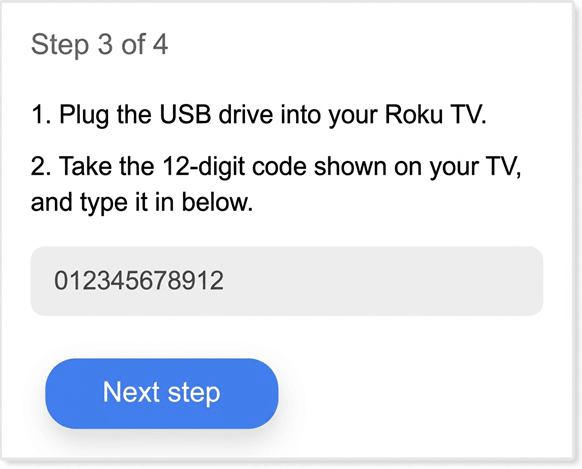
- After you enter the code correctly, a new 6-digit code appears on your computer screen
Conclua a atualização na TV.
Volte para a TV e digite o código de 6 dígitos usando o controle remoto da TV. A atualização do software começa imediatamente, e a TV reinicia assim que estiver concluída. Após a reinicialização da TV, você pode remover o pendrive.
Como formatar seu pendrive
Siga as instruções abaixo se precisar formatar o pendrive.
WARNING: All data is erased during this process.
Como formatar usando seu PC
- Plug the USB flash drive into your computer
- Open your Control Panel and select Administrative Tools
- Click on Computer Management
- Click on Disk Management
- Right-click the drive letter that corresponds to your USB flash drive
- Select Format
- If the flash drive capacity is more than 2GB, select FAT32. If it is less than 2GB, select FAT16
- Click OK to format your drive
Como formatar usando seu Mac
- Plug the USB flash drive into your computer
- Open Finder and search for "Disk Utility"
- Select the USB flash drive from the left panel
- Click on the Erase tab on the right panel
- Select MS-DOS (FAT) from the drop-down menu
- Click the Erase button
- Click the Erase button again when prompted to format your drive
Last updated at 2/25/2026 3:09:16 AM
Este artigo foi útil?
Artigos relacionados
Precisa de mais ajuda?

Suporte de agentes
Oferecemos suporte de agentes para determinados problemas e dispositivos.
Conferir as opções de suporte