Lorsque vous configurez votre lecteur Roku® ou votre Roku TV™, vous devez vous connecter à Internet via le Wi-Fi ou un câble Ethernet. Cette connexion est nécessaire pour regarder vos séries télé et films préférés, et recevoir des mises à jour. Si vous rencontrez des problèmes de connexion réseau, découvrez comment les résoudre sur cette page. Si vous rencontrez des problèmes de connexion d’un appareil Roku Smart Home, découvrez comment les résoudre ici.
Connecter votre appareil de streaming Roku lors de la configuration
Lorsque vous allumez votre télévision ou votre lecteur pour la première fois, vous devrez vous connecter à Internet. Après la configuration, vous pouvez utiliser votre appareil hors ligne, mais uniquement pour une diffusion via HDMI, par câble ou par radiodiffusion.
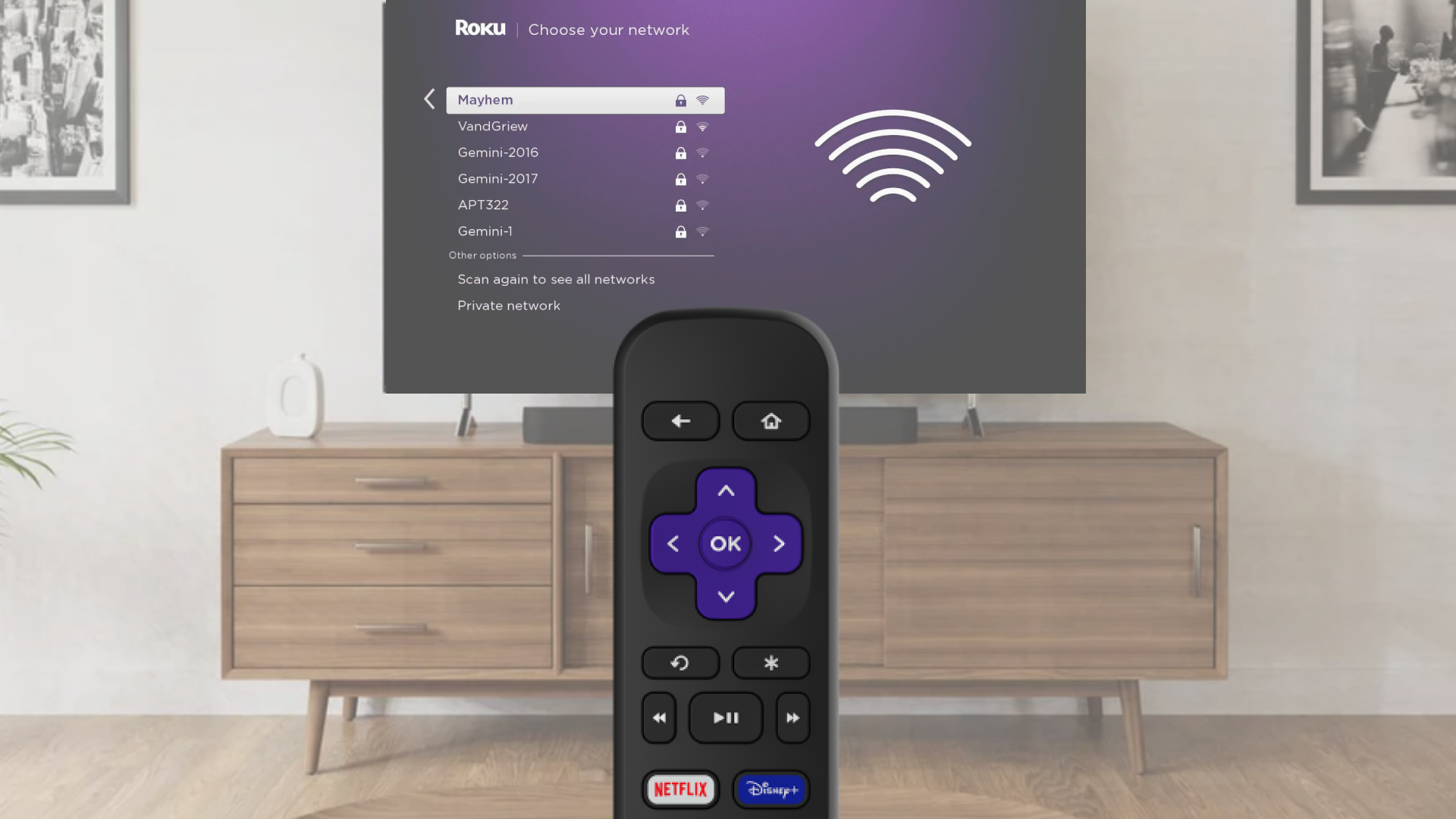
Choose Wi-Fi and connect
- Select Wireless when asked
- Pick your Wi-Fi network from the list
- If your network is missing, choose Scan again
- Enter your Wi-Fi password (it is case-sensitive)
- Tap Connect and finish following the on-screen steps
Use an Ethernet cable for a wired connection (Optional)
- Plug one end of an Ethernet cable into your TV or player
- Plug the other end into your router or modem
- On screen, choose Wired
- Follow the steps to complete setup
Change your network anytime
If you want to connect to a different Wi-Fi network or switch to wired:
- Press the Home button on your Roku remote
- Go to Settings > Network > Set up connection
- Choose Wired or Wireless
- If using Wi-Fi, pick your network and enter the password
- Your device will connect and show your network info
- If you do not see your Wi-Fi network, select Scan again to see all networks
Use a mobile hotspot if needed
No Wi-Fi available? Try using your phone’s hotspot:
- Turn on the hotspot from your phone’s settings
- On your Roku device, select Wireless
- Choose your wireless network from the list of available Wi-Fi networks
- If you do not see your network, select Scan again to see all networks
- Enter your network password
- Select Connect
- Follow the on-screen instructions to complete the rest of the set up process

Note: Some Roku players support a wired Ethernet connection with a USB adapter.
Note: Hotspots use mobile data, and streaming or updates can use a lot. Check with your wireless provider for data limits.
Dernière mise à jour : 7/9/2026 3:19:18 PM
Cet article a-t-il été utile ?
Articles similaires
Vous avez encore besoin d’aide ?

Assistance par un agent
Nous proposons une assistance par un agent pour certains problèmes et certains appareils.
Vérifier les options d’assistance