L’activation de votre système Roku TV™ garantit qu’il fonctionne avec la dernière version du logiciel Roku® OS. Dès que votre système Roku TV est connecté à Internet, il vérifie les mises à jour logicielles toutes les 24 à 36 heures. Lorsqu’une nouvelle version est disponible, elle est automatiquement téléchargée et installée sans interrompre l’utilisation de votre téléviseur. Vous pouvez également vérifier manuellement les mises à jour du logiciel.
Si votre système Roku TV n’est pas connecté à Internet, les mises à jour du logiciel doivent être effectuées manuellement en téléchargeant d’abord un fichier sur votre ordinateur, en le copiant sur une clé USB, puis en branchant cette clé USB à votre téléviseur.
Mise à jour du logiciel si vous n’avez pas activé votre système Roku TV
Vous pouvez suivre ces instructions si vous n’avez pas activé votre système Roku TV et que vous avez sélectionné Se connecter à Internet plus tard lors de la configuration et de l’activation initiales. Pour mettre à jour le logiciel manuellement, vous avez besoin d’une clé USB 2.0 standard d’une capacité d’au moins 256 Mo. Vous devez également passer de votre ordinateur (et non de votre téléphone intelligent) à votre téléviseur, comme indiqué ci-dessous.

Note: Some Roku TV systems require an internet connection to complete setup.
Télécharger le fichier de mise à jour sur votre ordinateur
- Open a web browser and go to tvupdate.roku.com.
- Choose the brand of your Roku TV system (e.g., TCL).
- Enter your Roku TV Hardware ID and Serial Number. The Hardware ID appears as 4 numbers followed by a letter and the Serial Number is a combination of 12 numbers and/or letters. To find this information, go to Settings > System > About on your TV.
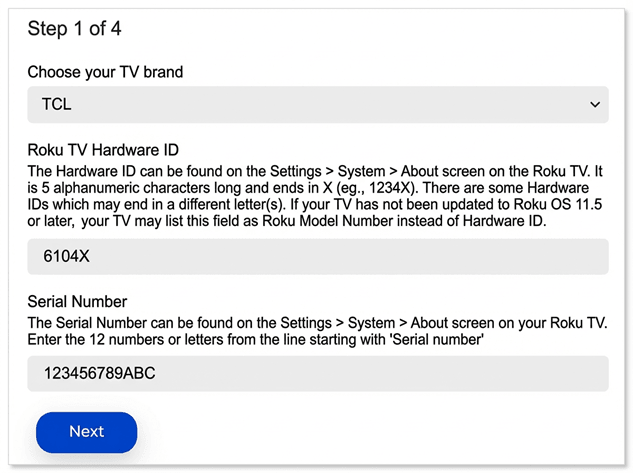
- Select Download Software to get the update.roku installer file downloaded to your computer.
- Locate the update.roku file on your computer. By default, it is often in a Downloads folder.
- Insert the USB flash drive and copy the update.roku file to the flash drive. Do not put it in a subfolder.
Une fois le transfert terminé, retirez la clé USB de votre ordinateur et branchez-la à votre téléviseur.
Brancher la clé USB sur votre téléviseur
- Connect the USB flash drive to the USB port on your TV
- Press the Home button
 on your TV remote
 - Select Settings
- Select System
- Select System update
- Select I can’t connect
Votre téléviseur valide le fichier sur la clé USB et affiche un code à 12 chiffres à l’écran. Si vous voyez le message « Le contenu du fichier de mise à jour est invalide », votre téléviseur utilise déjà la dernière version du logiciel.
Note: If you see the message "Update file could not be opened. Please try again", the format of the USB flash drive is likely not recognized. Visit the Formatting your USB flash drive section below for help.
Saisir le code sur votre ordinateur
- Return to your computer and enter the 12-digit code
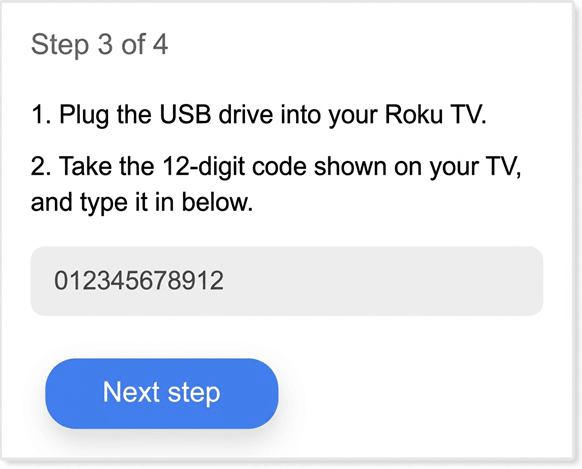
- After you enter the code correctly, a new 6-digit code appears on your computer screen
Terminer la mise à jour du téléviseur
Retournez sur votre téléviseur et entrez le code à six chiffres à l’aide de votre télécommande. La mise à jour du logiciel démarre immédiatement et votre téléviseur redémarre une fois celle-ci terminée. Après que votre téléviseur a redémarré, vous pouvez retirer la clé USB.
Formater votre clé USB
Utilisez les instructions ci-dessous si vous devez formater votre clé USB.
WARNING: All data is erased during this process.
Formatage sur PC
- Plug the USB flash drive into your computer
- Open your Control Panel and select Administrative Tools
- Click on Computer Management
- Click on Disk Management
- Right-click the drive letter that corresponds to your USB flash drive
- Select Format
- If the flash drive capacity is more than 2GB, select FAT32. If it is less than 2GB, select FAT16
- Click OK to format your drive
Formatage sur MAC
- Plug the USB flash drive into your computer
- Open Finder and search for "Disk Utility"
- Select the USB flash drive from the left panel
- Click on the Erase tab on the right panel
- Select MS-DOS (FAT) from the drop-down menu
- Click the Erase button
- Click the Erase button again when prompted to format your drive
Last updated at 2/25/2026 3:09:04 AM
Cet article vous a-t-il aidé?
Articles connexes
Besoin de plus d’aide?

Assistance de nos agents
Nous offrons une assistance par un agent pour certains problèmes et appareils.
Consulter les options d’assistance