El Roku® Streaming Stick® 4K (modelo 3820) admite 720p HD, 1080p Full HD, 4K Ultra HD (4K) y HDR (alto rango dinámico), e incluye un Roku Voice Remote con controles de TV. En este artículo encontrarás más información sobre tu Streaming Stick y cómo configurarlo.
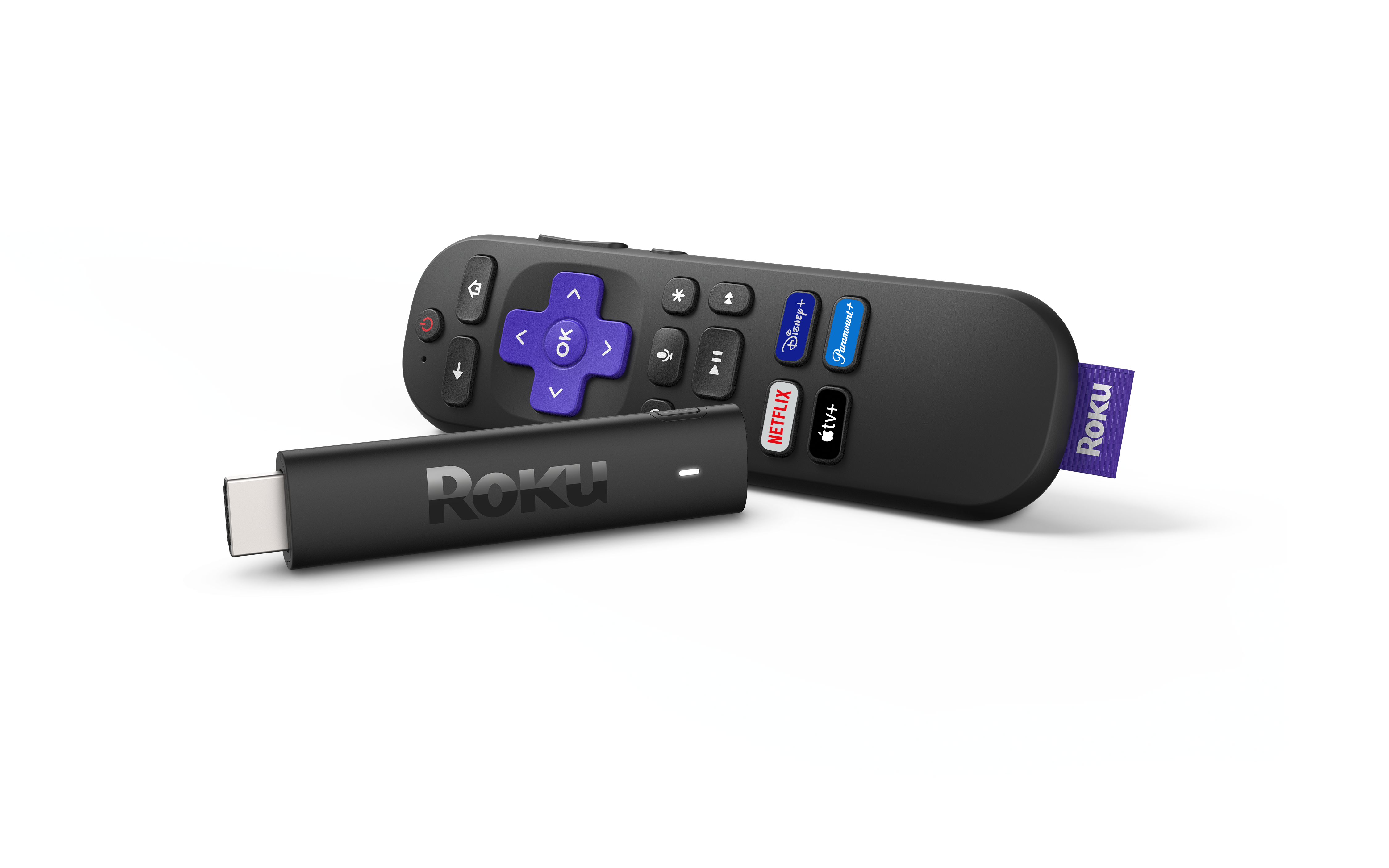
 Roku Streaming Stick 4K (modelo 3820)
Comprueba la compatibilidad de la TV
- Asegúrate de que tu TV tenga un puerto HDMI®.
- El Streaming Stick 4K funciona con cualquier TV que tenga una conexión HDMI.

Note: If your TV does not support 4K or HDR, the Roku streaming player will still work, but you will not see 4K or HDR picture quality.
Paso 1: conecta el Roku Streaming Stick a la TV
- Plug the Roku Streaming Stick 4K into an available HDMI port on your TV
- If there is not enough space for the stick to fit, request a free HDMI extender cable from Roku
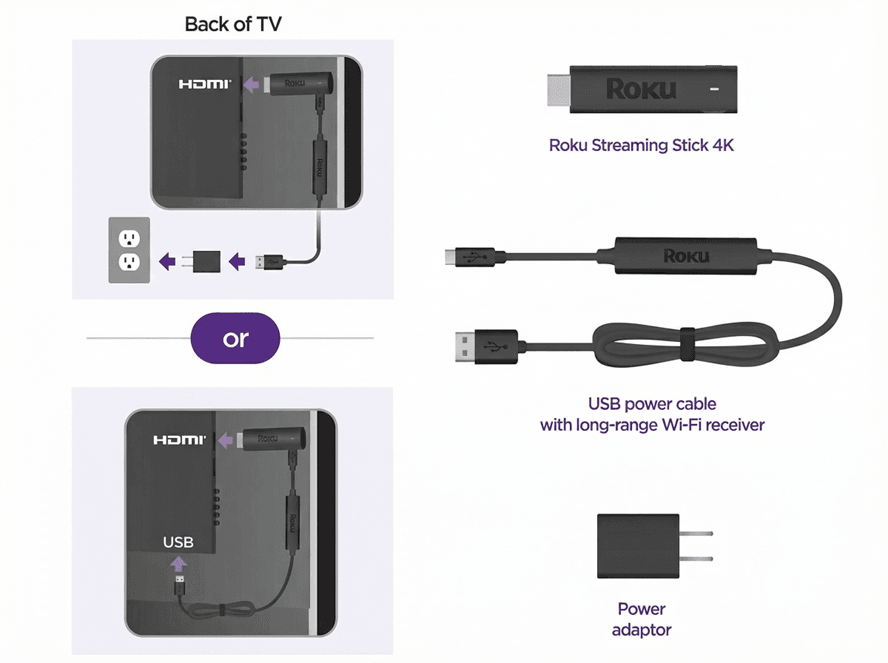
Paso 2: conecta el dispositivo a una fuente de energía
- Use only the USB power cable that came with your Roku Streaming Stick 4K. The long-range Wi-Fi® receiver is built into this cable, and using another cable may prevent the device from turning on (error 022)
- Connect the USB cable to one of these options:
- Wall outlet (recommended): Use the included power adapter
- USB port on TV: This may work on some TVs, but many do not supply enough power. If you see a warning message, switch to the wall outlet
Paso 3: enciende la TV y selecciona la entrada
- Power on your TV with the TV remote
- Select the HDMI input where your Roku Streaming Stick is connected
- If you do not see the Roku welcome screen, check that:
- The device is firmly plugged into HDMI
- The USB power cable is connected and the outlet is supplying power
- You have selected the correct TV input
Paso 4: configura el control remoto Roku
- Follow the on-screen pairing instructions.
- If the remote does not pair:
- Replace the batteries
- Restart your Roku device by unplugging it and plugging it back in
- Manually pair the remote by pressing the pairing button either on the back of the remote or under the battery cover. You can also press the Back
 and Home
 buttons for 5 seconds. Learn more about pairing.
Paso 5: conéctate a Internet
- Choose your preferred language
- Select wireless and choose your home Wi-Fi network. Enter your password to connect.
- If the connection fails, double-check your Wi-Fi password, restart your router, or move the Roku closer to the router. Learn how to troubleshoot Wi-Fi.
Paso 6: instala las actualizaciones
- After connecting to the Internet, your Roku device will automatically check for software updates
- Wait for the updates to finish installing
- For TVs that support 4K or HDR, make sure all connections support HDCP 2.2
- Select the Set Display Type option to allow Roku to match the best resolution for your TV
Paso 7: configura los controles de la TV en tu control remoto Roku (opcional)
- If you are using a Roku voice remote with TV controls, on-screen setup steps will appear.
- Follow the instructions to allow the Roku remote to control your TV’s power and volume. Certain Roku remotes released in 2017 and later include this feature.
- Some TVs may only support volume control
Paso final: activa tu cuenta Roku
- Follow the on-screen instructions to activate your Roku device
- You will be given a link code. On a separate device (phone, tablet, or computer), go to the website shown and enter the code.
- Sign in with your Roku account, or create one if you do not already have one. Learn how to link or activate your Roku account if you need help.
- Roku accounts are free. Roku does not charge activation fees.
¡Comenzar el streaming!
Una vez finalizada la configuración, tu Roku Streaming Stick 4K estará listo para usar.
Agrega canales de streaming, configura los temas o cambia el protector de pantalla para personalizar el dispositivo.
Preguntas frecuentes
¿El Roku Streaming Stick 4K funciona en cualquier TV?
Sí, siempre y cuando la TV tenga un puerto HDMI. Para usar funciones 4K o HDR, la TV debe ser compatible con ellas.
¿Puedo alimentar el reproductor Roku desde el puerto USB de mi TV?
Algunas TV suministran energía eléctrica suficiente, pero no todas. Si ves un mensaje de advertencia, conecta el Roku a un tomacorriente de pared con el adaptador que viene incluido.
¿Qué debo hacer si mi reproductor Roku no muestra nada en la TV?
Comprueba que el cable HDMI esté bien conectado, confirma que estés en la entrada de la TV correcta y asegúrate de estar usando el cable USB original para alimentar el dispositivo. Obtén información sobre qué hacer si no puedes ver la imagen de tu reproductor de streaming.
¿Puedo controlar mi TV con el control remoto Roku?
Sí, siempre que tengas un Roku Voice Remote con controles de TV. Algunas TV admiten el control de volumen y encendido, mientras que otras solo admiten el control de volumen.
Last updated at 9/8/2026 12:23:49 AM
¿Te resultó útil este artículo?
Artículos relacionados
¿Necesitas más ayuda?

Soporte técnico con agentes
Ofrecemos soporte técnico con agentes para ciertos problemas y dispositivos.
Consulta las opciones de soporte técnico