El programa beta de Roku te permite probar nuevas funciones y actualizaciones de software antes de su lanzamiento para el público general. Como evaluador beta, puedes ayudar a definir el futuro de Roku al proporcionar comentarios valiosos sobre funciones en etapa inicial.
¿Qué es el programa beta de Roku?
Cuando te unas al programa beta:
- Tus dispositivos Roku registrados recibirán compilaciones beta de software con nuevas funciones.
- Podrás ver qué productos Roku están inscritos en el programa beta en my.roku.com en la sección Dispositivos.
- Podrás proporcionar comentarios en los foros de la comunidad beta.
- Podrás salir del programa en cualquier momento.
¿Cómo me uno al programa beta de Roku?
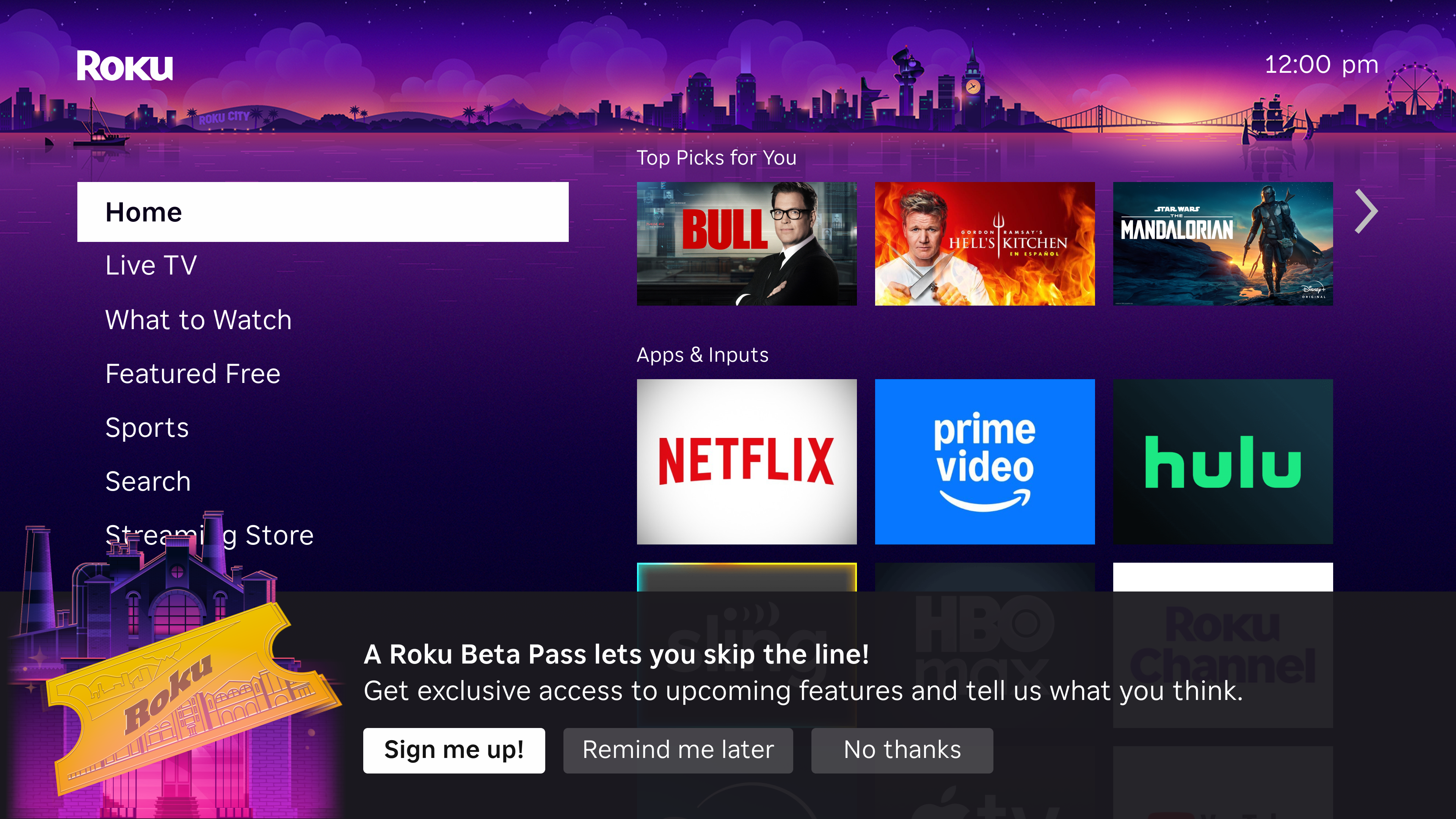
Si cumples con los requisitos para el programa beta, verás una ventana emergente de invitación en la pantalla de inicio de Roku que dice "Únete al programa beta de Roku" con el siguiente mensaje: "¡Un Roku Beta Pass te permite saltarte la fila!"
Para unirte:
When you see the invitation pop-up on your TV, select "Sign me up!"
A screen will appear with a QR code and the message: "Exclusive access with a Roku Beta Pass"
Scan the QR code with your phone's camera
You'll be taken to my.roku.com/account/beta-program
Sign in with your Roku account credentials
Review and agree to the beta program terms
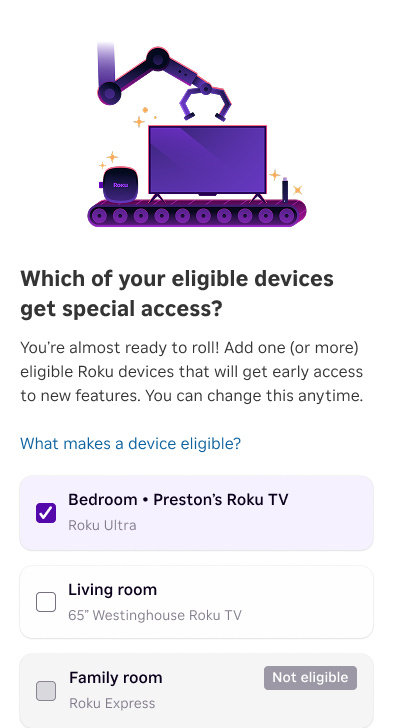
Select which of your eligible devices you want to enroll in the beta
When you see the invitation pop-up on your TV, select "Sign me up!"
A screen will appear with a QR code and the message: "Exclusive access with a Roku Beta Pass"
Scan the QR code with your phone's camera
You'll be taken to my.roku.com/account/beta-program
Sign in with your Roku account credentials
Review and agree to the beta program terms
Select which of your eligible devices you want to enroll in the beta
Tip: If you select "Remind me later" on the pop-up, you'll see it again in about a week. You can also visit my.roku.com/account/beta-program directly to manage your enrollment.
Tip: If you select "Remind me later" on the pop-up, you'll see it again in about a week. You can also visit my.roku.com/account/beta-program directly to manage your enrollment.
Note: Not all accounts or devices are eligible for the beta program. Eligibility may vary by region, device type, and other factors.
Note: Not all accounts or devices are eligible for the beta program. Eligibility may vary by region, device type, and other factors.
¿Cómo compruebo si me inscribí correctamente al programa beta?
Para comprobar el estado de inscripción al programa beta:
En tu dispositivo Roku:
- Ve a Configuración > Programa beta de Roku.
- Si te inscribiste correctamente, verás tu estado beta y un código QR mediante el cual podrás acceder a la comunidad beta y dejar tus comentarios.
En la web:
Sign in to my.roku.com/account/beta-program
View your enrolled devices and program status
Sign in to my.roku.com/account/beta-program
View your enrolled devices and program status
¿Cómo proporciono comentarios o reporto problemas?
Como evaluador beta, tus comentarios nos ayudan a mejorar Roku. Aquí te mostramos cómo compartir comentarios:
On your Roku device, go to Settings > Roku Beta Program
You'll see a QR code with the message: "Scan to see what's new and give feedback on our latest beta features."
Log in to the Roku Beta Portal using the same email you used to sign up for the Beta Program
Share your feedback with us by clicking the Play icon in the top-left menu next to Feedback

Include specific details about what you experienced, your device model, and any steps that led to the issue.
- You may be prompted to enter an Issue ID. You will be asked to press the Home button 5 times followed by the Back button 5 times on your Roku remote to bring up the Issue Report Tracker on your Roku device. Enter the Issue ID (uses the format XX-XXX-XXXX) shown on your device’s screen.
¿Cómo salgo del programa beta?
Puedes salir del programa beta en cualquier momento:
Desde tu dispositivo Roku:
Go to Settings > Roku Beta Program
Select "Remove device from beta"
A screen will appear with a QR code
Scan the QR code and visit my.roku.com/account/beta-program
Select the device(s) you want to remove from the Roku Beta Program
Confirm your choice
Go to Settings > Roku Beta Program
Select "Remove device from beta"
A screen will appear with a QR code
Scan the QR code and visit my.roku.com/account/beta-program
Select the device(s) you want to remove from the Roku Beta Program
Confirm your choice
Desde la web:
Sign in to my.roku.com and go to Beta testing program
Select Manage devices then choose the device(s) you want to remove from the Roku Beta Program
Confirm your choice
Después de salir:
- Tu dispositivo mostrará una confirmación: Dispositivo eliminado del programa beta de Roku.
- Tu dispositivo volverá al software de producción estándar (esto podría tardar hasta 24 horas).
- Recibirás un correo electrónico de confirmación.
- Puedes volver a unirte al programa en la configuración del dispositivo o en my.roku.com.
Después de salir, se te solicitará que califiques el programa beta de Roku. Tus comentarios nos ayudarán a mejorar el programa.
Note: Some settings may reset, and you may need to sign back into some apps
Tengo un problema con el dispositivo después de unirme al programa beta. ¿Qué debo hacer?
Es posible que, en algunos casos, el software beta pueda tener errores o comportarse de manera inesperada. Estos son los pasos que puedes seguir:
Basic troubleshooting: Try restarting your device
Check if it's a known beta issue: Visit the Roku Beta Program Forums to see if others have reported the same problem
Report the issue: Use the QR code in Settings > Roku Beta Program to submit feedback
Leave the beta: If the issue is significantly impacting your experience, you can leave the beta program to return to stable production software
Última actualización: 9/26/2026 12:02:38 AM
¿Fue útil este artículo?
¿Necesitas más ayuda?

Soporte técnico con agentes
Ofrecemos soporte técnico con agentes para ciertos problemas y dispositivos.
Consulta las opciones de soporte técnico