Cuando activas tu Roku TV™, te aseguras de que esté ejecutando la última versión del software Roku® OS. Cada vez que tu Roku TV se conecte a Internet, buscará actualizaciones de software cada 24 a 36 horas. Cuando hay una nueva versión disponible, se descarga e instala automáticamente sin interrumpir el uso de tu Roku TV. Si lo deseas, también puedes buscar nuevas actualizaciones de software de forma manual.
Si tu Roku TV no está conectada a Internet, se debe actualizar el software de forma manual descargando primero el archivo en una computadora, copiándolo a una unidad USB y luego conectando esa unidad a la Roku TV.
Actualización del software si NO has activado tu Roku TV
Las siguientes instrucciones presuponen que no has activado tu Roku TV y que seleccionaste Conectar a Internet más tarde durante el proceso de activación y configuración inicial. Para actualizar el software de forma manual, necesitas una unidad USB 2.0 de 256 MB o superior. También debes moverte entre la computadora (no tu teléfono inteligente) y la Roku TV, como se detalla a continuación.
En tu computadora
- Open a web browser and go to tvupdate.roku.com.
- Choose the brand of your Roku TV system (e.g., TCL).
- Enter your Roku TV Hardware ID and Serial Number. The Hardware ID appears as 4 numbers followed by a letter and the Serial Number is a combination of 12 numbers and/or letters. To find this information, go to Settings > System > About on your TV.
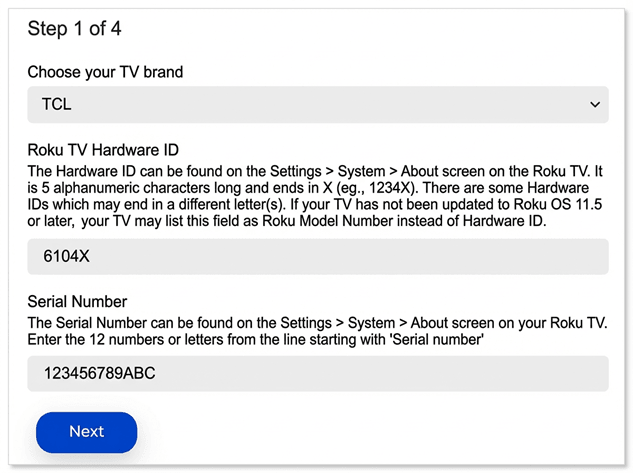
- Select Download Software to get the update.roku installer file downloaded to your computer.
- Locate the update.roku file on your computer. By default, it is often in a Downloads folder.
- Insert the USB flash drive and copy the update.roku file to the flash drive. Do not put it in a subfolder.
Una vez completada la transferencia, desconecta la unidad USB de tu computadora y llévala a tu Roku TV.
En tu Roku TV
- Connect the USB flash drive to the USB port on your TV
- Press the Home button
 on your TV remote
 - Select Settings
- Select System
- Select System update
- Select I can’t connect
La Roku TV valida el archivo en la unidad USB y muestra el código de 12 dígitos en la pantalla de la TV. Si ves el mensaje "Los contenidos del archivo de actualización son inválidos", tu Roku TV ya está ejecutando la última versión del software.
En tu computadora
- Return to your computer and enter the 12-digit code
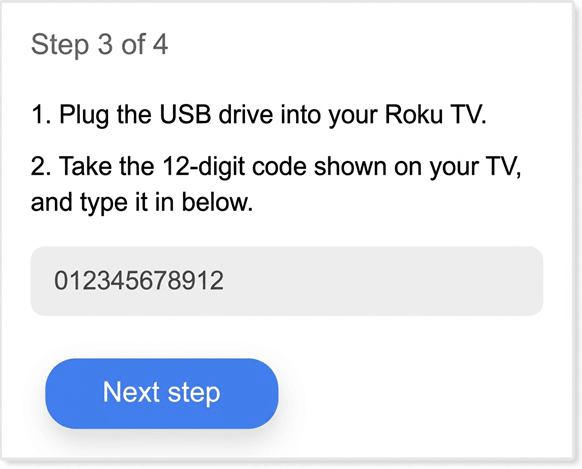
- After you enter the code correctly, a new 6-digit code appears on your computer screen
En tu Roku TV
- Regresa a la Roku TV e ingresa el código de 6 dígitos con tu control remoto de Roku TV.
La actualización del software comienza inmediatamente y, una vez finalizada, tu Roku TV se reiniciará. Luego de que tu Roku TV se reinicie, puedes desconectar la unidad USB.
Formatear una unidad USB
Sigue las instrucciones a continuación si necesitas formatear tu unidad USB.
ADVERTENCIA: Se eliminarán todos los datos durante este proceso.
Formatear en una PC
- Plug the USB flash drive into your computer
- Open your Control Panel and select Administrative Tools
- Click on Computer Management
- Click on Disk Management
- Right-click the drive letter that corresponds to your USB flash drive
- Select Format
- If the flash drive capacity is more than 2GB, select FAT32. If it is less than 2GB, select FAT16
- Click OK to format your drive
Formatear en MAC
- Plug the USB flash drive into your computer
- Open Finder and search for "Disk Utility"
- Select the USB flash drive from the left panel
- Click on the Erase tab on the right panel
- Select MS-DOS (FAT) from the drop-down menu
- Click the Erase button
- Click the Erase button again when prompted to format your drive
Last updated at 8/28/2026 9:03:16 PM
¿Fue útil este artículo?
Artículos relacionados
¿Necesitas más ayuda?

Soporte técnico con agentes
Ofrecemos soporte técnico con agentes para ciertos problemas y dispositivos.
Consulta las opciones de soporte técnico