The Roku Beta Program lets you try out new features and software updates before they're released to everyone. As a beta tester, you can help shape the future of Roku by providing valuable feedback on early features.
What is the Roku Beta Program?
When you join the beta program:
- Your enrolled Roku devices will receive beta software builds with new features
- On my.roku.com under Devices you will see which of your Roku products is enrolled in the Beta
- You can share feedback through the beta community forums
- You can leave the program at any time
How do I join the Roku Beta Program?
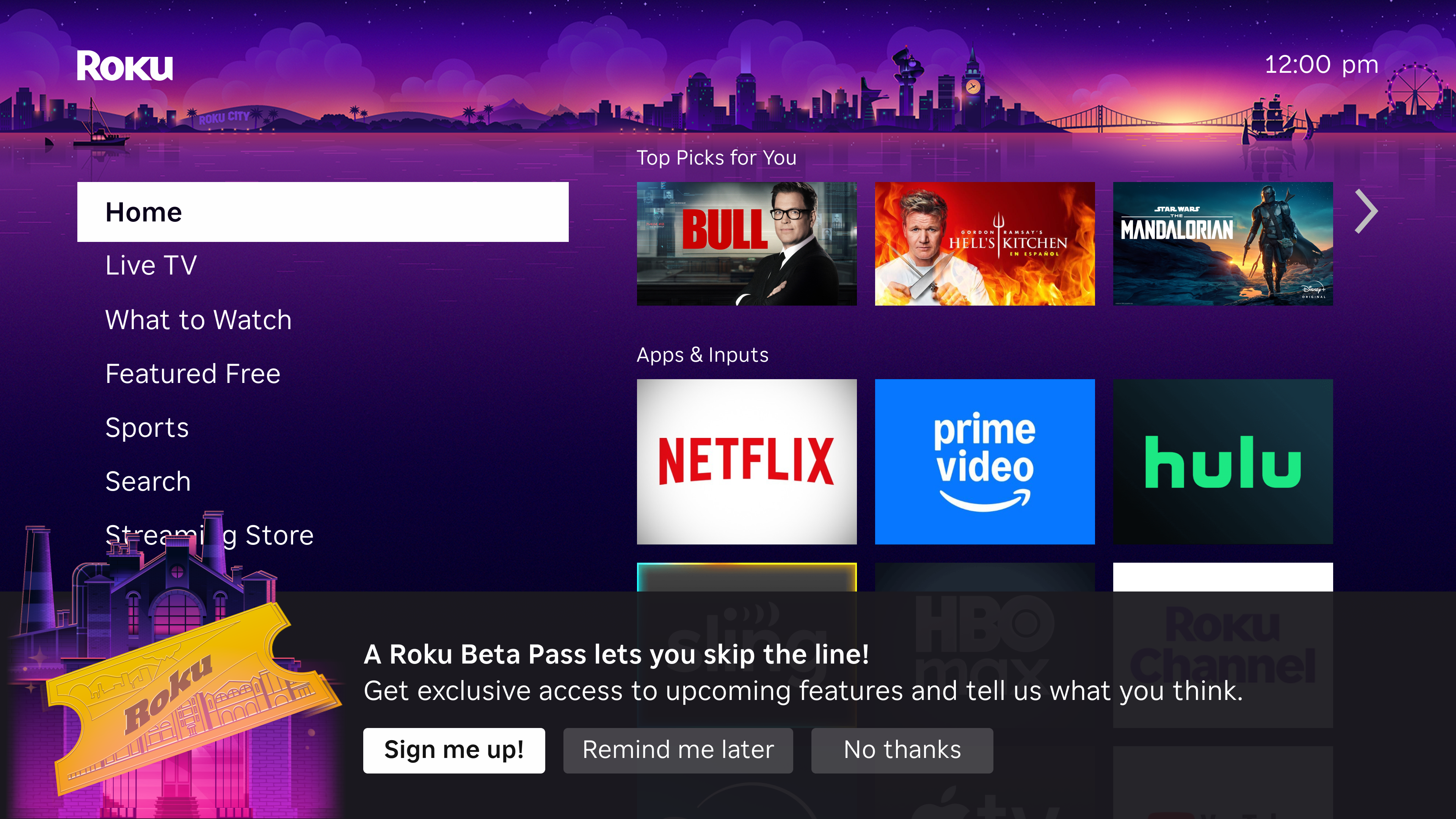
If you're eligible for the beta program, you'll see a pop-up invitation on your Roku home screen that says "Join the Roku Beta Program" with the message: "A Roku Beta Pass lets you skip the line!"
To join:
When you see the invitation pop-up on your TV, select "Sign me up!"
A screen will appear with a QR code and the message: "Exclusive access with a Roku Beta Pass"
Scan the QR code with your phone's camera
You'll be taken to my.roku.com/account/beta-program
Sign in with your Roku account credentials
Review and agree to the beta program terms
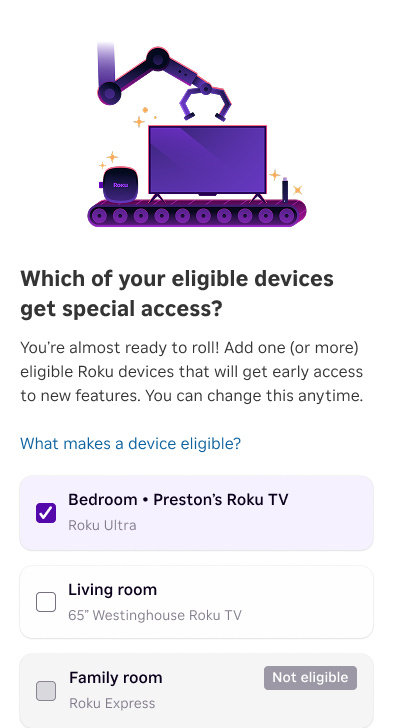
Select which of your eligible devices you want to enroll in the beta
When you see the invitation pop-up on your TV, select "Sign me up!"
A screen will appear with a QR code and the message: "Exclusive access with a Roku Beta Pass"
Scan the QR code with your phone's camera
You'll be taken to my.roku.com/account/beta-program
Sign in with your Roku account credentials
Review and agree to the beta program terms
Select which of your eligible devices you want to enroll in the beta
Tip: If you select "Remind me later" on the pop-up, you'll see it again in about a week. You can also visit my.roku.com/account/beta-program directly to manage your enrollment.
Tip: If you select "Remind me later" on the pop-up, you'll see it again in about a week. You can also visit my.roku.com/account/beta-program directly to manage your enrollment.
Note: Not all accounts or devices are eligible for the beta program. Eligibility may vary by region, device type, and other factors.
Note: Not all accounts or devices are eligible for the beta program. Eligibility may vary by region, device type, and other factors.
How do I check if I'm enrolled in the Beta Program?
To check your beta enrollment status:
On your Roku device:
- Go to Settings > Roku Beta Program
- If enrolled, you'll see your beta status and a QR code to access the beta community for feedback
On the web:
Sign in to my.roku.com/account/beta-program
View your enrolled devices and program status
Sign in to my.roku.com/account/beta-program
View your enrolled devices and program status
How do I provide feedback or report issues?
As a beta tester, your feedback helps us improve Roku. Here's how to share it:
On your Roku device, go to Settings > Roku Beta Program
You'll see a QR code with the message: "Scan to see what's new and give feedback on our latest beta features."
Log in to the Roku Beta Portal using the same email you used to sign up for the Beta Program
Share your feedback with us by clicking the Play icon in the top-left menu next to Feedback

Include specific details about what you experienced, your device model, and any steps that led to the issue.
- You may be prompted to enter an Issue ID. You will be asked to press the Home button 5 times followed by the Back button 5 times on your Roku remote to bring up the Issue Report Tracker on your Roku device. Enter the Issue ID (uses the format XX-XXX-XXXX) shown on your device’s screen.
How do I leave the Beta Program?
You can leave the beta program at any time:
From your Roku device:
Go to Settings > Roku Beta Program
Select "Remove device from beta"
A screen will appear with a QR code
Scan the QR code and visit my.roku.com/account/beta-program
Select the device(s) you want to remove from the Roku Beta Program
Confirm your choice
Go to Settings > Roku Beta Program
Select "Remove device from beta"
A screen will appear with a QR code
Scan the QR code and visit my.roku.com/account/beta-program
Select the device(s) you want to remove from the Roku Beta Program
Confirm your choice
From the web:
Sign in to my.roku.com and go to Beta testing program
Select Manage devices then choose the device(s) you want to remove from the Roku Beta Program
Confirm your choice
After leaving:
- Your device will show a confirmation: "Device removed from the Roku Beta Program."
- Your device will return to the standard production software (this may take up to 24 hours)
- You'll receive a confirmation email
- You can rejoin the program by going to the device settings or by visiting my.roku.com again
After you leave, you will be asked to rate the Roku Beta Program. Your feedback will help us to improve the program.
Note: Some settings may reset, and you may need to sign back into some apps
I'm experiencing an issue with my device after joining the Beta Program. What should I do?
Beta software may occasionally have bugs or unexpected behavior. Here's what to try:
Basic troubleshooting: Try restarting your device
Check if it's a known beta issue: Visit the Roku Beta Program Forums to see if others have reported the same problem
Report the issue: Use the QR code in Settings > Roku Beta Program to submit feedback
Leave the beta: If the issue is significantly impacting your experience, you can leave the beta program to return to stable production software
Last updated on 9/28/2026 6:44:14 PM
Was this article helpful?
Need more help?
