The Smart Home Web View allows you to take control of your Roku smart home cameras and doorbells from your computer. View your live stream feeds and capture screenshots and video, use two-way audio for communication, and sound the camera siren, all from the web app.
Use the Smart Home web app
- Go to cameras.roku.com
- Log in to your My Roku account

Note: Learn more about your My Roku account
View feeds
- Click Grid to see all your camera feeds at once
- Click Focused to enlarge the selected camera feed while viewing thumbnails of the other feeds
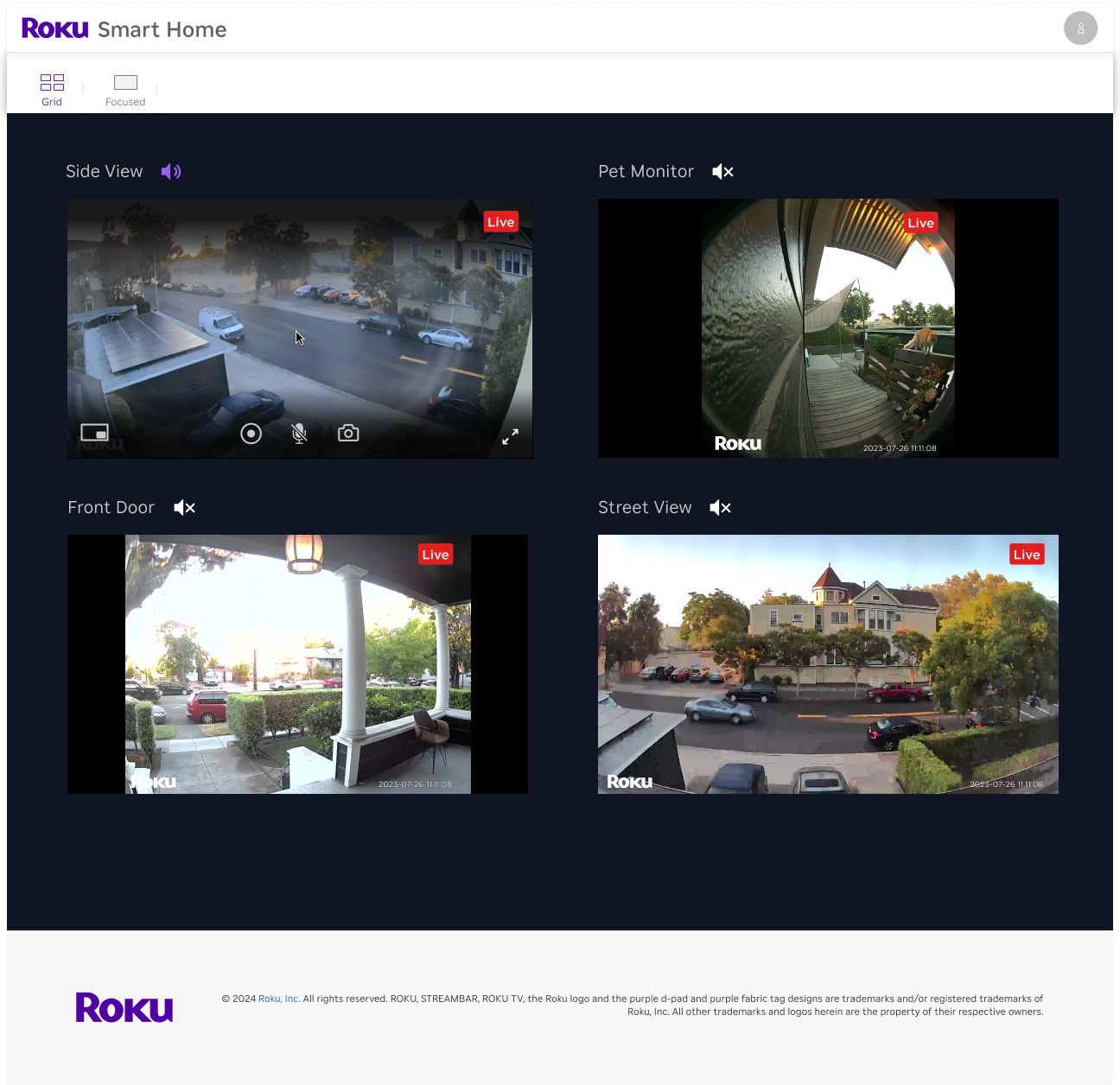
Controls
- Mute - Click Sound
 to mute and unmute the feed. Feeds are muted by default
 - Record - Select the Record
 button to begin recording from the currently selected live feed. Click Record again to stop. A video of the recording will be automatically saved to your computer's Downloads folder
 - Microphone - Click the Microphone
 to enable two-way audio and speak through your camera’s microphone
 - Take a photo - Click on the Camera
 icon to snap a screenshot of your live feed. The photo will be saved to your computer's Downloads folder
 - Siren - Click the Siren
 to turn on a loud siren from your camera. Click the icon again to turn the siren off
 - Power - Select the Power
 button to turn your camera off. Click the button again to power the camera feed back on
Note: Roku smart home doorbells and wireless cameras do not support two-way audio.
Last updated at 6/26/2026 10:57:08 PM
Was this article helpful?
Related articles
Need more help?
