With your compatible Roku® device, you can connect a smartphone, tablet, or computer via Bluetooth®, a wireless communication technology that allows devices to exchange data over short distances (typically less than 30 feet). When a Bluetooth device is connected and playing audio, the Bluetooth app launches automatically on your Roku device so you can listen to music, podcasts, or other audio streamed from apps installed on your smartphone, tablet, or computer.
This article will help you resolve problems you may encounter when attempting to pair, connect, or use your Bluetooth device with your compatible Roku device.
Which Roku devices are compatible?
- Roku Streambar SE®
- Roku Streambar®
- Roku Streambar Pro
- Roku Smart Soundbar or onn.™ Roku Smart Soundbar
- Roku Ultra models 4800, 4802, and 4850
- Roku Ultra LT model 4801
- Roku Select Series 4K (2025)
- Roku Plus Series TV
- Roku Pro Series TV
- Roku TV™ system with Roku wireless speakers, Roku TV Wireless Soundbar, or TCL Roku TV Wireless Soundbar

Note
- Roku Ultra models 4670, 4661, 4660, and 4640 and Roku Ultra LT model 4662 are not compatible.
- A Bluetooth device can be connected directly to a Roku Plus Series TV. If you have any other Roku TV system, you will need to pair Roku Wireless Speakers or a Roku TV Wireless Soundbar to add Bluetooth capability to your TV.
Is your Roku device connected and set up?
Before you can pair a Bluetooth device, your compatible Roku device must be connected and set up.
Roku Streambar, Roku Streambar Pro or Roku Smart Soundbar, or compatible Roku player
Use the instructions from the appropriate article below to connect and set up your Roku device.How do I set up my Roku Streambar SE?
- How do I set up my Roku Streambar SE?
- How do I set up my Roku Streambar?
- How do I set up my Roku Streambar Pro or Roku Smart Soundbar?
- How do I set up my Roku Ultra or Ultra LT?
Roku wireless speakers or Roku TV Wireless Soundbar
Roku wireless speakers or a Roku TV Wireless Soundbar connects wirelessly to your Roku TV system, initially through a discovery process called pairing. For more help, learn more about setting up your wireless speakers or setting up your wireless soundbar. After your wireless speakers or wireless soundbar is paired, it remains connected even when the screen on your TV is powered off. You can visit the Settings menu on your TV at any time to check that your speakers or soundbar is connected.
- Press Home
 on your Roku remote
 Scroll and select Settings
Select Remotes & devices to open the Remote & devices menu
Select Audio devices
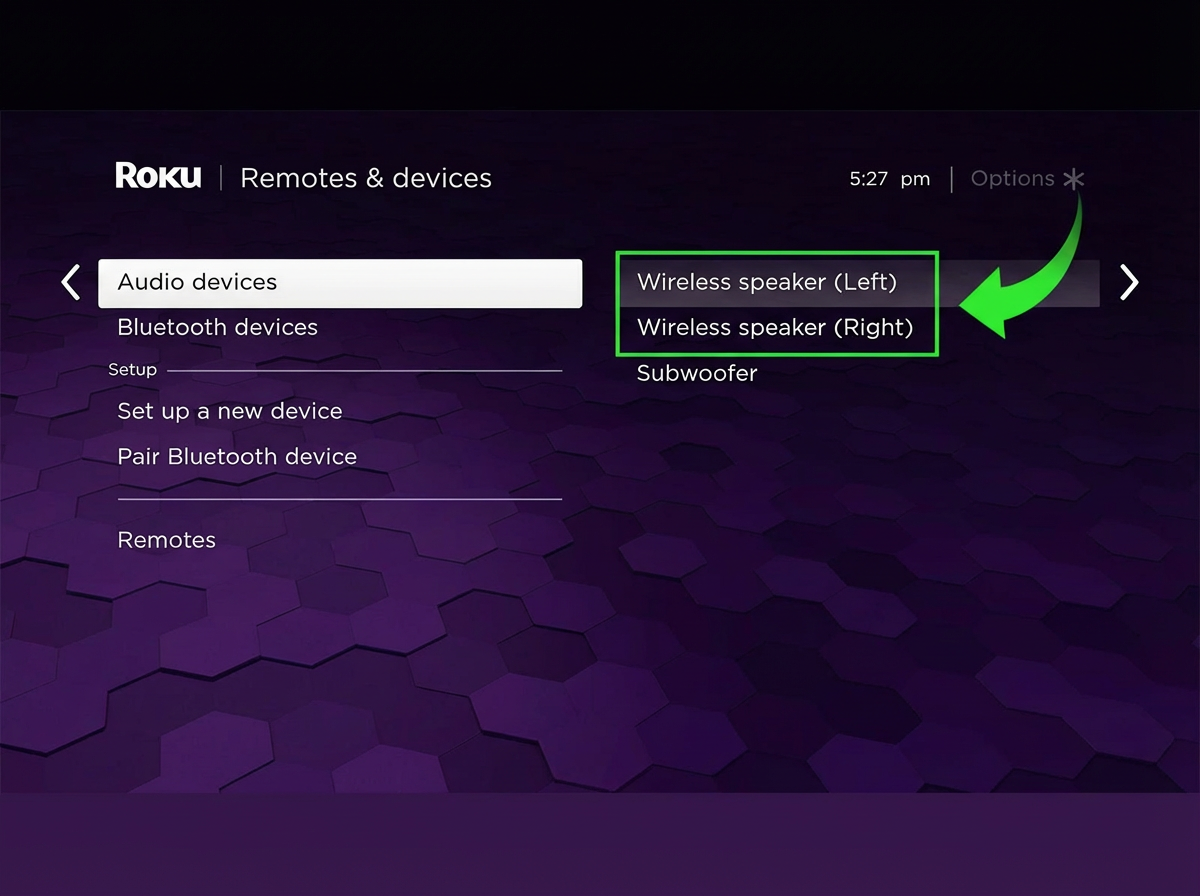
If your speakers or soundbar is not listed, it has not been paired and you must first set up your wireless speakers or set up your wireless soundbar before you can pair a Bluetooth device.
If you see your device listed but next to it you see (Disconnected), your speakers or soundbar has previously been paired, but is not connected. If this is the case, try the following:
Disconnect the power cable from the speakers or soundbar
Move your speakers or soundbar closer to your TV
Power the speakers or soundbar back on and try again
If the behavior continues, factory reset your wireless audio device and try again to set up your wireless speakers or to set up your wireless soundbar. If your speakers or soundbar fails to pair, read about what you can do to resolve pairing issues with your wireless speakers or resolve pairing issues with your wireless soundbar.
Problems pairing your Bluetooth device
Before you can begin streaming Bluetooth audio, you need to connect your smartphone, tablet, or computer to your compatible Roku device. This is also done through a pairing process which allows Bluetooth devices to register information about each other to make a secure wireless connection. Because this pairing information is retained even when Bluetooth devices are powered off, it is typically only necessary to pair your Bluetooth device one time.
To check if your smartphone, tablet, or computer is paired, open the Remotes & devices menu as described above, and then select Bluetooth devices. Look for your Bluetooth device by name as seen below.
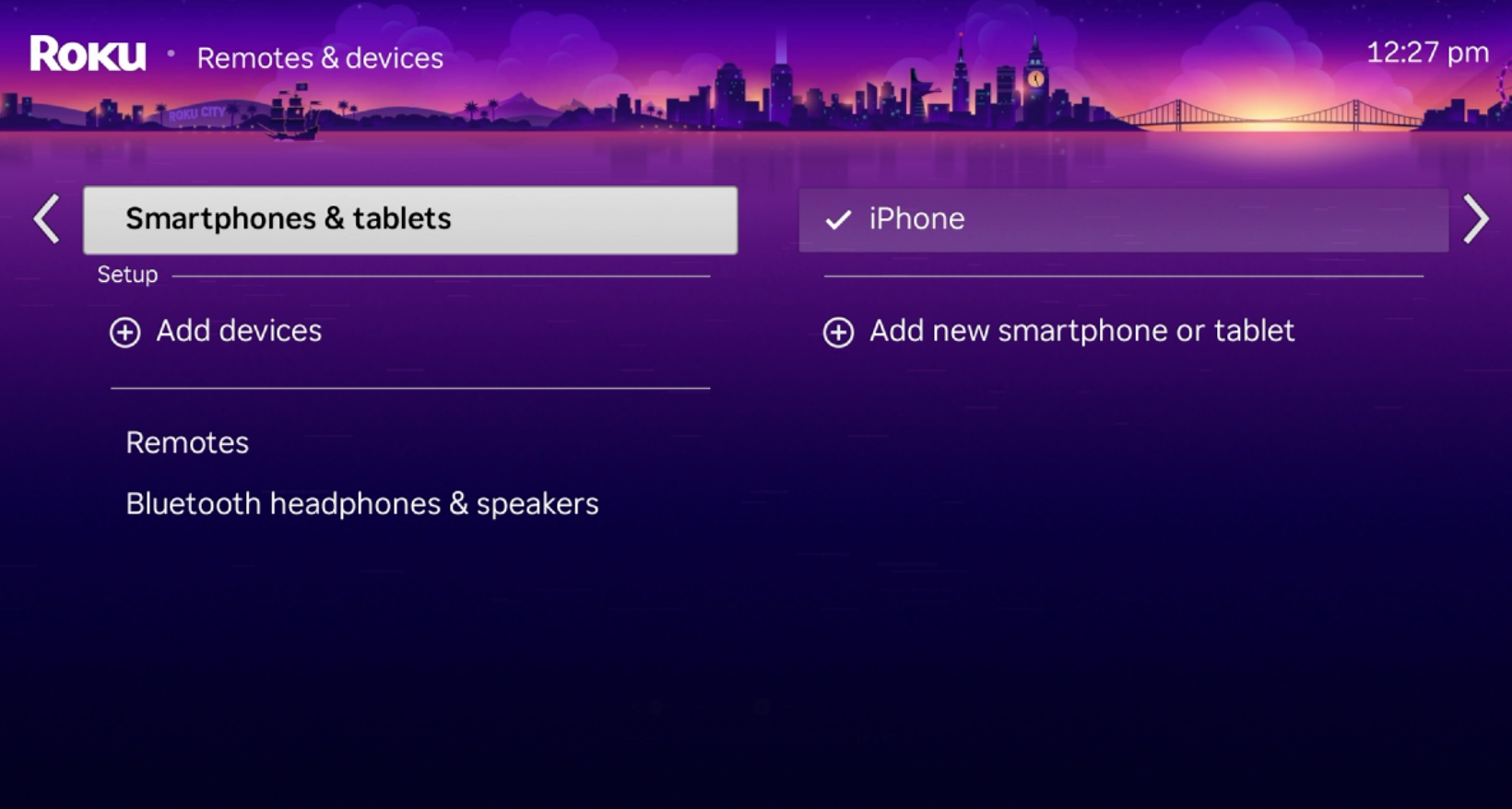
NOTE: The name that appears in the list is acquired from your Bluetooth device. You can typically change this by accessing the settings menu on your smartphone, tablet, or computer. Refer to the manufacturer's online documentation for help.
If you do not see your Bluetooth device in the list, it is not paired. You must first pair your Bluetooth device to your Roku device before you can listen to audio from your smartphone, tablet, or computer.
If your Bluetooth device fails to pair:
- Make sure Bluetooth is enabled: Bluetooth must be turned on, or enabled on your Bluetooth device, and your device must not be in 'airplane mode'. With some devices, you may need to turn Bluetooth off, and then back on to get it to pair. For help using Bluetooth on your Bluetooth device, refer to the manufacturer's online resources or contact their support center. You can find links to some common manufacturers in the detailed article about connecting a Bluetooth device to your Roku device.
- Check your wireless speakers or wireless soundbar: If you have Roku wireless speakers or a Roku TV Wireless Soundbar, make sure it is powered on and working. When paired and connected, you will see it listed on the Remotes & devices menu as described earlier in this article. If your wireless speakers or wireless soundbar is not connected, you will not be able to pair a Bluetooth device.
- Check that your Roku device is in pairing mode: Your Roku device must be in pairing mode to allow your smartphone, tablet, or computer to discover it. To enter pairing mode, go to Settings > Remotes & devices > Pair Bluetooth device.
- Move your device closer: Bluetooth allows devices to wirelessly exchange data over short distances (typically less than 30 feet). Try moving your Bluetooth device closer when attempting to pair.
- Wait longer: If you do not see your Roku device in the list of discovered devices on your Bluetooth device, check that your Roku device is still in the Bluetooth pairing screen, and restart the scan on your smartphone, tablet, or computer. Occasionally, Bluetooth devices take longer (30-60 seconds) to discover devices around them.
- Restart Bluetooth device: In some cases, restarting your Bluetooth device will get it to pair successfully.
- Eliminate interference: If you already have a Bluetooth device paired and it is nearby, try powering it off if you are attempting to pair a second Bluetooth device.
- Repeat the pairing process: In the event that a device lost pairing information, delete pairing information on both your Bluetooth device and Roku device, and repeat the pairing process. To delete pairing information on your Bluetooth device, open the list of paired Bluetooth devices and remove, or 'forget' your Roku device. On your Roku device, go to Settings > Remotes & devices > Bluetooth devices to select your Bluetooth device, and then select Forget this device.
Problems connecting your Bluetooth device
After your Bluetooth device is paired, it must also be connected before you can stream audio to your compatible Roku device.
When you initially pair your smartphone, tablet, or computer, it may also connect automatically to your Roku device. To check if your Bluetooth device is connected, open the Remotes & devices menu as described above and then select Bluetooth devices. You will see a check mark next to your device.
This indicator lets you know your Bluetooth device is not only paired, but also connected to your Roku device, and is ready to use.
If your Bluetooth device is paired, but not connected:
- Make sure Bluetooth is enabled: Bluetooth must be turned on, or enabled on your Bluetooth device, and your device must not be in 'airplane mode'. With some devices, you may need to turn Bluetooth off, and then back on to get it to pair. For help using Bluetooth on your Bluetooth device, refer to the manufacturer's online resources or contact their support center. You can find links to some common manufacturers in the detailed article about connecting a Bluetooth device to your Roku device.
- Check your wireless speakers or wireless soundbar: If you have Roku wireless speakers or a Roku TV Wireless Soundbar, make sure it is powered on and working. When paired and connected, you will see it listed on the Remotes & devices menu as described earlier in this article. If your wireless speakers or wireless soundbar is not connected, you will not be able to pair a Bluetooth device.
- Check that your Roku device is in pairing mode: Your Roku device must be in pairing mode to allow your smartphone, tablet, or computer to discover it. To enter pairing mode, go to Settings > Remotes & devices > Pair Bluetooth device.
- Move your device closer: Bluetooth allows devices to wirelessly exchange data over short distances (typically less than 30 feet). Try moving your Bluetooth device closer when attempting to pair.
- Wait longer: If you do not see your Roku device in the list of discovered devices on your Bluetooth device, check that your Roku device is still in the Bluetooth pairing screen, and restart the scan on your smartphone, tablet, or computer. Occasionally, Bluetooth devices take longer (30-60 seconds) to discover devices around them.
- Restart Bluetooth device: In some cases, restarting your Bluetooth device will get it to pair successfully.
- Eliminate interference: If you already have a Bluetooth device paired and it is nearby, try powering it off if you are attempting to pair a second Bluetooth device.
- Repeat the pairing process: In the event that a device lost pairing information, delete pairing information on both your Bluetooth device and Roku device, and repeat the pairing process. To delete pairing information on your Bluetooth device, open the list of paired Bluetooth devices and remove, or 'forget' your Roku device. On your Roku device, go to Settings > Remotes & devices > Bluetooth devices to select your Bluetooth device, and then select Forget this device.
Why do I not hear anything from my Bluetooth device?
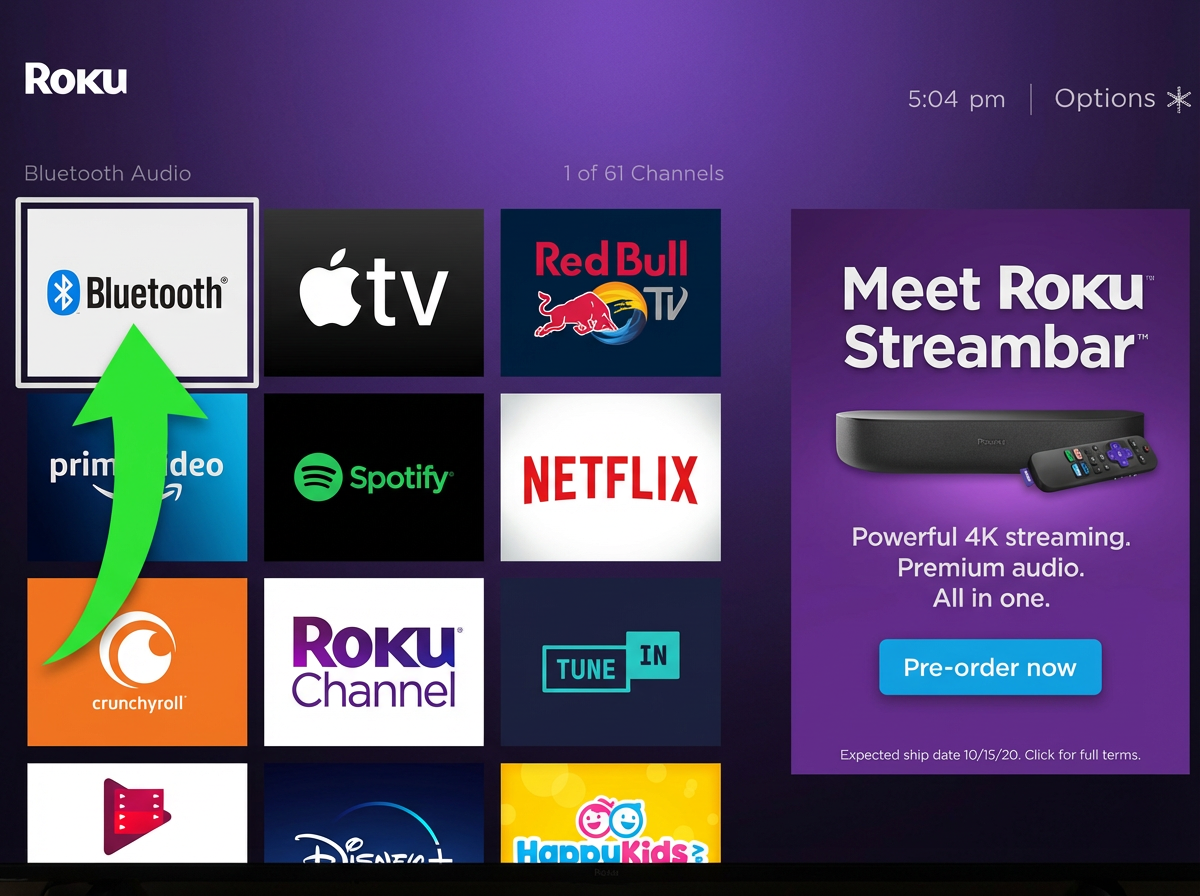
After your smartphone, tablet, or computer is paired and connected to your compatible Roku device, the Bluetooth app should launch automatically. If it does not, you can manually open the Bluetooth app by selecting the app icon from the grid, issuing a voice command, or pressing a personal shortcut button on a compatible Roku remote.
Select the app icon
To open the app from your Home screen, use your Roku remote and navigate the app grid with the directional pad. The directional pad is plus-shaped and is in the center of your remote. Once you find the Bluetooth app, highlight it and press OK
 on Roku remote to open it.
Issue a voice command
You can open the Bluetooth app with a voice command using the free Roku mobile app or a Roku voice remote. Simply press and hold the Voice button  with microphone icon and with a conversational tone at a normal volume, say something like "launch the Bluetooth app" or "open Bluetooth". If you have a Roku Voice Remote Pro, you can also use hands-free voice to issue the same commands. Just remember to begin your request with "Hey Roku...". For help using voice commands, read more about using your voice to search and control your Roku device.
Create a personal shortcut button
If you plan to listen to Bluetooth audio frequently, you may want to program one of the personal shortcut buttons on select Roku voice remotes. To do this, issue a voice command as described above and wait a moment for the app to open. Next, press and hold the personal shortcut button until you hear the success tone. The button is now programmed to launch the Bluetooth app with a single touch. For help saving an often-used voice command, read more about creating a personal shortcut on your compatible voice remote.
NOTE: A personal shortcut button can be re-assigned as many times as you like.
After the Bluetooth app is open and an app is playing music, a podcast, or other audio content on your Bluetooth device, you should hear sound after a moment. You will also see details on the TV screen about the music or podcast that is playing. If you see this information, but still do not hear sound, adjust the volume level making sure it is not muted or inaudible. You can also adjust the volume from your smartphone, tablet, or computer, but you will not see volume feedback on the TV screen like when you adjust the volume with a Roku remote or voice command.
NOTE: When you adjust the volume from your Bluetooth device, there may be a slight delay until you hear a change in audio volume.
Other issues when using your Bluetooth device
Below are some issues you may encounter when streaming Bluetooth audio:
- Missing song or podcast information: When audio begins streaming from your Bluetooth device, your TV screen may display the Bluetooth device name, track name, and artist name in that order. If this information is not appearing, it is possible that it is not being transmitted by your Bluetooth device. For example, this information is not sent when some Windows 10 laptops stream music, or when iOS® devices (e.g., iPhone) stream YouTube.
- Playing content from a web browser: When you play content from a web browser on your smartphone, tablet, or computer, information about the music, podcast, or other audio will not be displayed in the Bluetooth app. In addition, you cannot use a Roku remote to issue control commands such as pause or play, due to a lack of support for control information from a web browser over Bluetooth. In cases like this, you can view playback information and issue control commands from your smartphone, tablet, or computer, or download and use the standalone app.
- Skip back behavior: You may find that "skip back" or Rewind
 on Roku remote on your Roku remote does not behave as you expect. This is because different brands and models of Bluetooth devices interpret "skip back" commands differently. Some skip back to the previous track, while others only skip back to beginning of the current track. It may be necessary to quickly press Rewind on Roku remote two times to skip back to the previous track.
Why is the Bluetooth app opening unexpectedly?
In rare cases, you may find the Bluetooth app opens unexpectedly when your Bluetooth device connects and begins playing audio without you having initiated any action. To correct this behavior, you can manually disconnect your Bluetooth device each time this happens or turn off the Bluetooth auto-play feature altogether.
Manually disconnect your Bluetooth device
When you disconnect a smartphone, tablet, or computer from your compatible Roku device, it remains in the My paired devices list as it is merely disconnected from the current Bluetooth session. You can use the steps below to manually disconnect your Bluetooth device should the Bluetooth app open unexpectedly.
Press Home
on Roku remote on your Roku remoteScroll and select Settings
Select Remotes & devices
Select Bluetooth devices
Select your Bluetooth device by name
Select Disconnect
NOTE: The name that appears in the list is acquired from your Bluetooth device. You can typically change this name by accessing the settings menu on your smartphone, tablet, or computer. Refer to the manufacturer's online documentation for help.
Once your Bluetooth device is disconnected, the Bluetooth app will not launch automatically, and you will not be able to stream Bluetooth audio to your Roku device. You must re-connect your smartphone, tablet, or computer when you want to stream Bluetooth audio again.
Turn off Bluetooth auto-play
You can turn the Bluetooth auto-play feature off (or on) only when the Bluetooth app is open.
If it is not already open, launch the Bluetooth app on your Roku device.
Press Star
 on Roku remote on your Roku remote to access playback options.
Scroll to highlight Bluetooth auto-play.
Switch the setting to Off (or On).
Last updated on 4/20/2026 3:35:25 PM
Was this article helpful?
Need more help?
