A theme pack defines the overall look and feel of the Roku® interface including the color and style of the menus, background image, screensaver, and navigation sounds. Changing the theme pack is a simple way to personalize your Roku experience with a single selection. A default theme pack is included with your Roku streaming device, while additional theme packs are available for free download from the Settings menu on your Roku device.
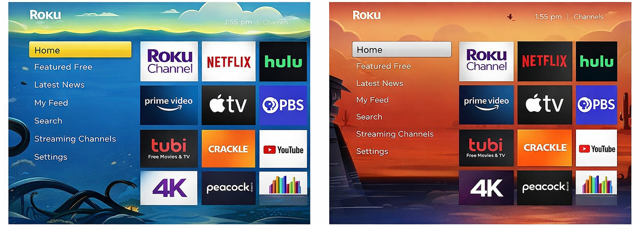
How to change theme pack settings
Use the following steps to browse and change theme packs in the Settings menu.
- Press Home
 on your Roku remote
 - Scroll and select Settings
- Select Theme
Select Theme packs to browse the available options
- Highlight a theme pack and press OK
 on your remote to open the description and details
From the theme pack details page, you can choose one of the following actions:
- Get theme pack: A theme pack must be downloaded and installed before you can set the theme.
- Set theme pack: If the theme pack is installed, select Set theme pack to switch the wallpaper, screensaver, and navigation sounds all at once.
- Remove theme pack: Get rid of theme packs you no longer use to free up storage space on your streaming device.
- View screenshots: Look at the the sample screenshots to see a preview of the theme pack.
Once you have picked out your new theme, you can change individual elements such as wallpaper, screensaver, or navigation sounds. To change theme elements, open the Theme menu and then go to Wallpapers, Screensavers, or Navigation sounds to browse the options and make your selections.

Note: If you have a Roku account PIN, you will be required to enter it. If you do not have a PIN and wish to keep other members of your household from adding theme packs, learn how to create a PIN for your Roku account.
How to change seasonal wallpaper settings
On various occasions throughout the year, such as Valentine's Day or Halloween, Roku releases seasonal wallpapers that only appear for a short period of time. Your Roku device will automatically display a seasonal wallpaper and then switch back after it expires.
Seasonal wallpapers are enabled by default. You can turn them off them using the following instructions.
Press Home
 on your Roku remote
Scroll and select Settings
Select Theme
Select Seasonal wallpapers
Select Off to turn off seasonal themes (or select On to turn them on)
How to change sponsored wallpaper settings
Sponsored wallpapers are enabled by default. You can turn them off them using the following instructions.
Press Home
on your Roku remoteScroll and select Settings
Select Theme
Select Sponsored wallpapers
Select Off to turn off Sponsored wallpapers (or select On to turn them on)
Other ways to personalize the Roku interface
In addition to selecting a theme pack, you can further personalize your Roku device by:
Last updated at 7/30/2026 5:15:22 PM
Was this article helpful?
Related articles
Need more help?
