Roku® streaming players (including the one built into the Roku Streambar® SE, Roku Streambar, Roku Streambar Pro, and Roku Smart Soundbar) can be connected to any TV with an HDMI® connection. If you have a pair of Roku wireless speakers, they must be connected to a Roku host device such as a Roku TV™, Roku Streambar, Roku Streambar Pro, or Roku Smart Soundbar; and will not work with other TVs or Roku streaming players.
You can find more details in this article about connecting a Roku player and the type of HDMI cable to use, and how a Roku audio device can enhance your listening experience.
Roku players
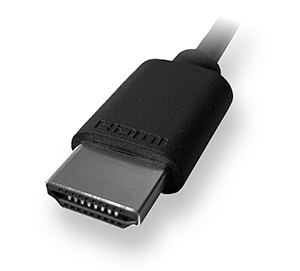
All Roku streaming players, including a Roku Streaming Stick®, Roku Streambar SE, Roku Streambar, Roku Streambar Pro, and Roku Smart Soundbar, will work with any television with an HDMI connection. However, certain features such as 4K Ultra HD or HDR require that you connect your Roku player to a compatible television that can support these features (see section below).Aside from a Streaming Stick, when connecting a Roku streaming player to your TV using an HDMI connection, we recommend you use a High Speed HDMI Cable if your TV only supports 720p and 1080p, or a Premium High Speed HDMI Cable if your TV also supports 4K and/or HDR.
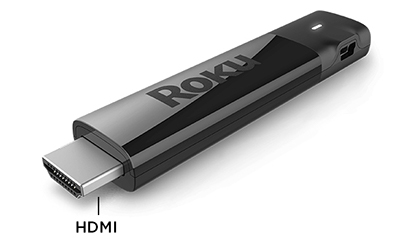
A Roku Streaming Stick connects directly to the HDMI port on your TV, and does not need an HDMI cable.
Questions about 4K Ultra HD and HDR
Do I need a 4K or HDR-compatible TV if I buy a Roku player that supports 4K or HDR?
No. All 4K Roku streaming players will work with any television with an HDMI connection. However, you will not be able to take advantage of 4K resolution without a compatible 4K TV, or HDR without a compatible HDR TV. You will also need a Premium High Speed HDMI Cable unless you are connecting a compatible Roku Streaming Stick.
Do I need a 4K or HDR-compatible Roku player if I have a 4K or HDR-compatible television?
No. All Roku streaming players will work for any television with an HDMI connection, so any Roku player can be connected to a 4K or HDR-compatible television. However, to stream movies and TV shows in 4K or HDR you will need a compatible Roku streaming player and television that supports 4K or HDR. You will also need a Premium High Speed HDMI Cable unless you are connecting a compatible Roku Streaming Stick.
Do I need to do anything special to configure a HDR compatible television for HDR?
You may need to update the software on your TV. You can typically find instructions how to do this along with the latest software on the TV manufacturer’s website. Once you confirm that your TV is running the latest software, check that it is properly configured to enable HDR on the specific input to which your Roku player gets connected. Some TVs that support HDR do not enable this feature by default.
Compare Roku streaming players to determine which 4K or HDR-compatible player is right for you.
Learn more about setting up your Roku streaming player for 4K or setting up your Roku player for HDR.
Last updated at 7/27/2026 3:15:31 PM
Was this article helpful?
Related articles
Need more help?
