Mit dem Roku Beta Program kannst du neue Funktionen und Software-Updates ausprobieren, bevor sie für alle veröffentlicht werden. Als Beta-Tester kannst du durch wertvolles Feedback zu frühen Funktionen dazu beitragen, die Zukunft von Roku mitzugestalten.
Was ist das Roku Beta-Programm?
Wenn du am Beta-Programm teilnimmst:
- Deine registrierten Roku Geräte erhalten Beta-Softwareversionen mit neuen Funktionen
- Auf my.roku.com unter Geräte siehst du, welches deiner Roku-Produkte für die Beta registriert ist.
- Du kannst Feedback über die Beta-Community-Foren teilen
- Du kannst das Programm jederzeit verlassen.
Wie nehme ich am Roku Beta-Programm teil?
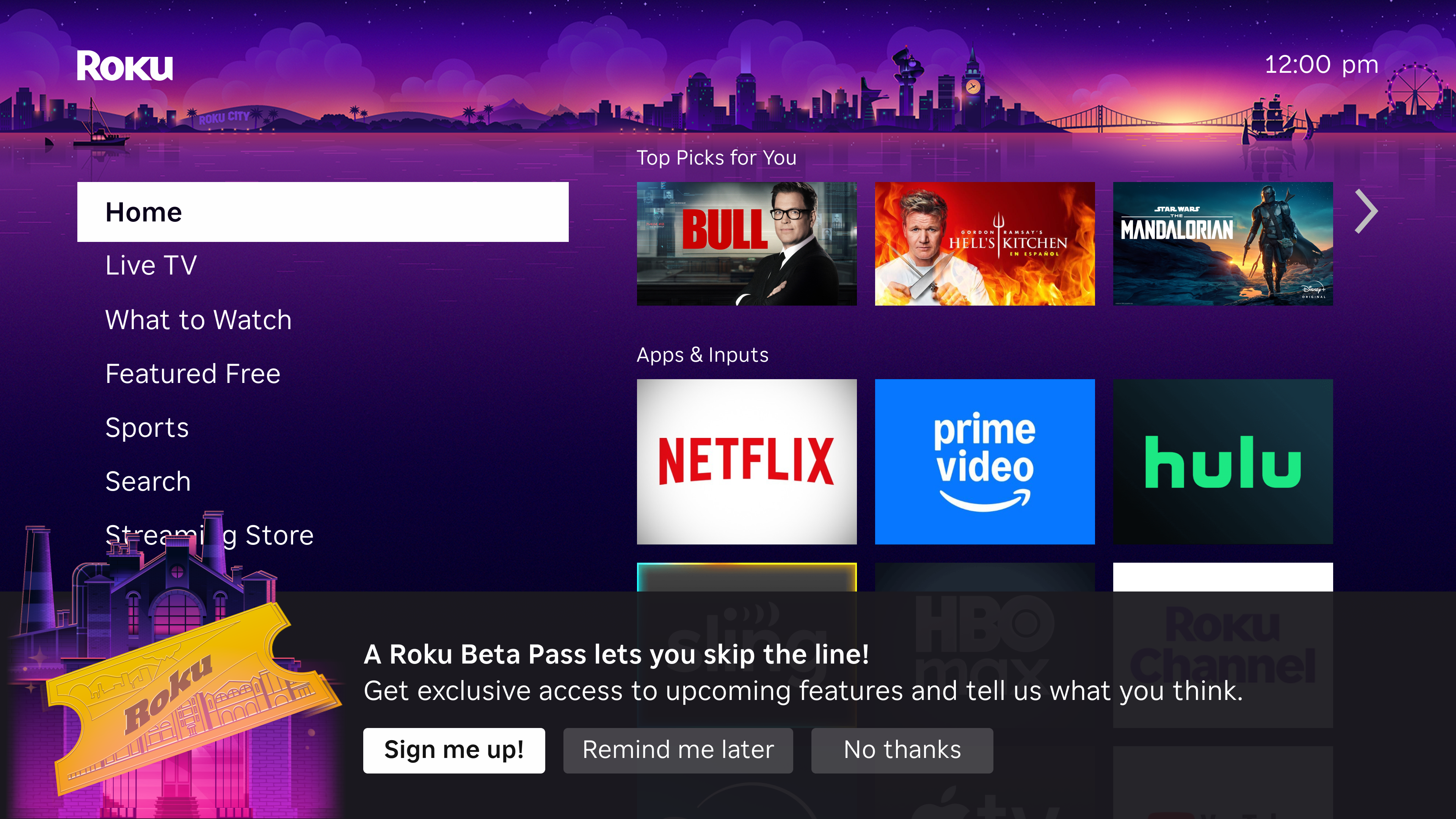
Wenn du für das Betaprogramm berechtigt bist, siehst du auf deinem Roku-Startbildschirm eine Pop-up-Einladung mit dem Text „Am Roku-Betaprogramm teilnehmen“ und der Nachricht: „Ein Roku-Beta-Pass lässt dich die Warteschlange überspringen!“
Beitreten:
When you see the invitation pop-up on your TV, select "Sign me up!"
A screen will appear with a QR code and the message: "Exclusive access with a Roku Beta Pass"
Scan the QR code with your phone's camera
You'll be taken to my.roku.com/account/beta-program
Sign in with your Roku account credentials
Review and agree to the beta program terms
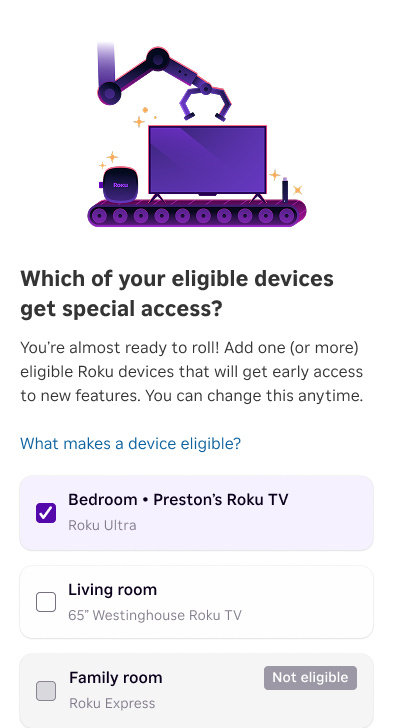
Select which of your eligible devices you want to enroll in the beta
When you see the invitation pop-up on your TV, select "Sign me up!"
A screen will appear with a QR code and the message: "Exclusive access with a Roku Beta Pass"
Scan the QR code with your phone's camera
You'll be taken to my.roku.com/account/beta-program
Sign in with your Roku account credentials
Review and agree to the beta program terms
Select which of your eligible devices you want to enroll in the beta
Tip: If you select "Remind me later" on the pop-up, you'll see it again in about a week. You can also visit my.roku.com/account/beta-program directly to manage your enrollment.
Tip: If you select "Remind me later" on the pop-up, you'll see it again in about a week. You can also visit my.roku.com/account/beta-program directly to manage your enrollment.
Note: Not all accounts or devices are eligible for the beta program. Eligibility may vary by region, device type, and other factors.
Note: Not all accounts or devices are eligible for the beta program. Eligibility may vary by region, device type, and other factors.
Wie überprüfe ich, ob ich für das Beta-Programm registriert bin?
So kannst du deinen Beta-Registrierungsstatus überprüfen:
Auf deinem Roku Gerät:
- Gehe zu Einstellungen > Roku Beta-Programm
- Wenn du registriert bist, werden dir dein Betastatus und ein QR-Code angezeigt, über den du auf die Beta-Community zugreifen kannst, um Feedback zu geben.
Im Web:
Sign in to my.roku.com/account/beta-program
View your enrolled devices and program status
Sign in to my.roku.com/account/beta-program
View your enrolled devices and program status
Wie kann ich Feedback geben oder Probleme melden?
Als Betatester hilfst du uns mit deinem Feedback, Roku zu verbessern. So kannst du es teilen:
On your Roku device, go to Settings > Roku Beta Program
You'll see a QR code with the message: "Scan to see what's new and give feedback on our latest beta features."
Log in to the Roku Beta Portal using the same email you used to sign up for the Beta Program
Share your feedback with us by clicking the Play icon in the top-left menu next to Feedback

Include specific details about what you experienced, your device model, and any steps that led to the issue.
- You may be prompted to enter an Issue ID. You will be asked to press the Home button 5 times followed by the Back button 5 times on your Roku remote to bring up the Issue Report Tracker on your Roku device. Enter the Issue ID (uses the format XX-XXX-XXXX) shown on your device’s screen.
Wie verlasse ich das Betaprogramm?
Du kannst das Betaprogramm jederzeit verlassen:
Über dein Roku-Gerät:
Go to Settings > Roku Beta Program
Select "Remove device from beta"
A screen will appear with a QR code
Scan the QR code and visit my.roku.com/account/beta-program
Select the device(s) you want to remove from the Roku Beta Program
Confirm your choice
Go to Settings > Roku Beta Program
Select "Remove device from beta"
A screen will appear with a QR code
Scan the QR code and visit my.roku.com/account/beta-program
Select the device(s) you want to remove from the Roku Beta Program
Confirm your choice
Über das Web:
Sign in to my.roku.com and go to Beta testing program
Select Manage devices then choose the device(s) you want to remove from the Roku Beta Program
Confirm your choice
Nach dem Verlassen:
- Auf deinem Gerät wird folgende Bestätigung angezeigt: „Gerät aus dem Roku Beta-Programm entfernt.“
- Auf deinem Gerät wird die Standard-Produktionssoftware wiederhergestellt (dies kann bis zu 24 Stunden dauern).
- Du wirst eine Bestätigungs-E-Mail erhalten.
- Du kannst dem Programm erneut beitreten, entweder über die Geräteeinstellungen oder über die Website my.roku.com.
Nachdem du das Programm verlassen hast, wirst du gebeten, das Roku Beta-Programm zu bewerten. Dein Feedback wird uns helfen, das Programm zu verbessern.
Note: Some settings may reset, and you may need to sign back into some apps
Ich habe ein Problem mit meinem Gerät, nachdem ich dem Beta-Programm beigetreten bin. Was soll ich tun?
Beta-Software kann gelegentlich fehlerhaft sein oder sich unerwartet verhalten. Versuche Folgendes:
Basic troubleshooting: Try restarting your device
Check if it's a known beta issue: Visit the Roku Beta Program Forums to see if others have reported the same problem
Report the issue: Use the QR code in Settings > Roku Beta Program to submit feedback
Leave the beta: If the issue is significantly impacting your experience, you can leave the beta program to return to stable production software
Zuletzt aktualisiert am 9/26/2026 12:02:36 AM
War dieser Artikel hilfreich?
Brauchst du weitere Hilfe?

Support durch Mitarbeiter
Für bestimmte Probleme und Geräte bieten wir Support durch Mitarbeiter.
Support-Optionen anschauen