Wenn du deinen Roku® Streaming Player oder Roku TV™ einrichtest, wirst du aufgefordert wirst, dich per Wi-Fi oder über ein Ethernet-Kabel mit dem Internet zu verbinden. Du musst außerdem mit dem Internet verbunden sein, um deine Lieblingsserien und -filme zu streamen und Updates zu erhalten. Wenn du Unterstützung benötigst, erfährst du hier, wie du Probleme mit der Netzwerkverbindung beheben kannst. Wenn du Probleme bei der Verbindung eines Roku Smart Home-Geräts hast, erfährst du hier, wie du Offline-Probleme beheben kannst.
Verbinden deines Roku-Streaming-Geräts während der Einrichtung
Wenn du dein TV-Gerät oder deinen Player zum ersten Mal einschaltest, wirst du aufgefordert, eine Verbindung zum Internet herzustellen. Nach der Einrichtung kannst du dein Gerät offline verwenden, aber nur für HDMI-, Kabel- oder terrestrische Sendungen.
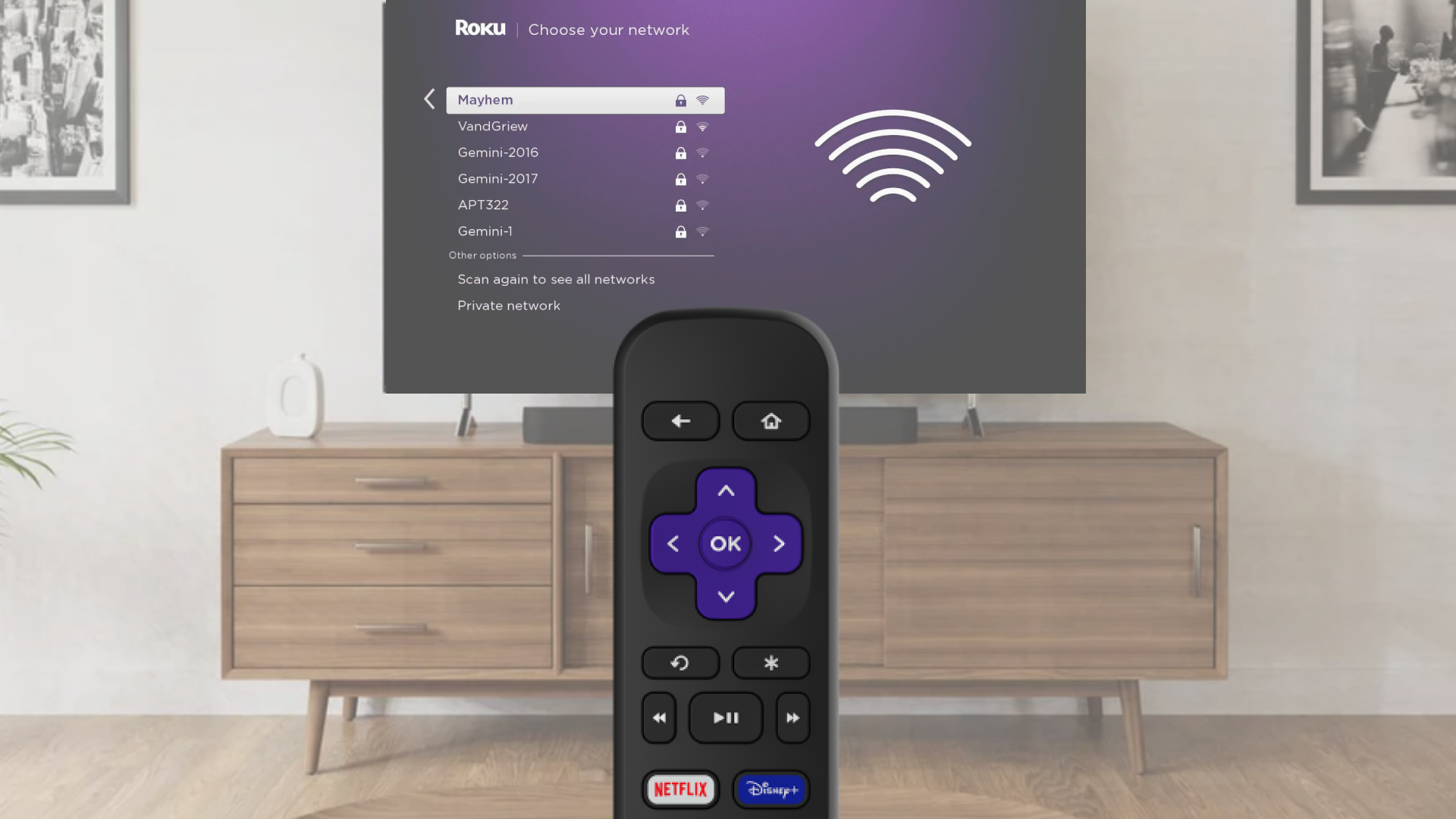
Choose Wi-Fi and connect
- Select Wireless when asked
- Pick your Wi-Fi network from the list
- If your network is missing, choose Scan again
- Enter your Wi-Fi password (it is case-sensitive)
- Tap Connect and finish following the on-screen steps
Use an Ethernet cable for a wired connection (Optional)
- Plug one end of an Ethernet cable into your TV or player
- Plug the other end into your router or modem
- On screen, choose Wired
- Follow the steps to complete setup
Change your network anytime
If you want to connect to a different Wi-Fi network or switch to wired:
- Press the Home button on your Roku remote
- Go to Settings > Network > Set up connection
- Choose Wired or Wireless
- If using Wi-Fi, pick your network and enter the password
- Your device will connect and show your network info
- If you do not see your Wi-Fi network, select Scan again to see all networks
Use a mobile hotspot if needed
No Wi-Fi available? Try using your phone’s hotspot:
- Turn on the hotspot from your phone’s settings
- On your Roku device, select Wireless
- Choose your wireless network from the list of available Wi-Fi networks
- If you do not see your network, select Scan again to see all networks
- Enter your network password
- Select Connect
- Follow the on-screen instructions to complete the rest of the set up process

Note: Some Roku players support a wired Ethernet connection with a USB adapter.
Note: Hotspots use mobile data, and streaming or updates can use a lot. Check with your wireless provider for data limits.
Zuletzt aktualisiert am 7/9/2026 3:19:29 PM
War dieser Artikel hilfreich?
Ähnliche Artikel
Brauchst du weitere Hilfe?

Support durch Mitarbeiter
Für bestimmte Probleme und Geräte bieten wir Support durch Mitarbeiter.
Support-Optionen anschauen