Your Roku streaming player can switch between the HDMI devices connected to your TV, like a game console, cable box, or Blu-ray player, right from the Roku Home screen. You can also switch inputs with your Roku voice remote once your inputs are set up. The way your player finds those devices depends on what kind of TV you have: a Roku TV uses your network, while other TVs use HDMI-CEC. This guide covers both.
1. Before you start
Turn on your TV and any HDMI devices you want to switch to (game console, cable box, Blu-ray player, etc.).
Plug each device into one of your TV's HDMI ports.
Set up your TV so your Roku player can talk to it:
- If your TV is a Roku-branded TV: Make sure your Roku TV and your Roku player are on the same network, and that your Roku TV's software is up to date (Settings > System > System update).
- If your TV is another brand: Turn on HDMI-CEC in your TV's settings. Your TV may call it Anynet+, Bravia Sync, Simplink, or something similar. Learn more.
2. Switch TV inputs
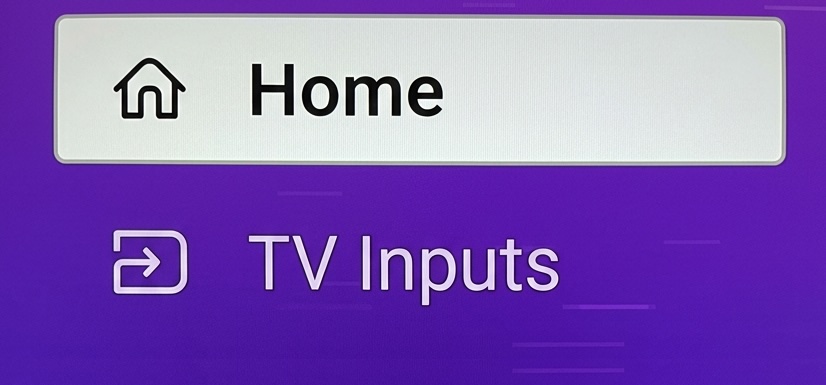
The first time, your Roku player needs to find your TV's HDMI inputs. You only do this once.
On the Roku Home screen, use the left arrow to open the menu and select TV Inputs.
The first time you open it, you'll see a Switch TV inputs card. Select Find inputs.
You'll see a Finding inputs message while your Roku player looks for connected devices.
When it's done, your TV's inputs show up as tiles. Select any tile to switch to that device.
When you're finished, press the Home
 button on your remote to return to your Roku player. You can also press and hold the microphone
 button on your Roku voice remote, then say the name of the input or device. Ex. “Switch to HDMI 1.”
3. Rename, hide, or add to Quick Access
You can manage inputs from the Inputs section on the Home Screen. Hover over the Input tile and click the Star  button. You can also manage inputs from the Settings menu under TV Inputs.
Rename
Choose Rename.
Pick a name from the list or Enter your own with the on-screen keyboard.
Save.
Hide
Choose Hide and confirm.
Roku will show Please wait, then <Input> hidden.
Hidden inputs disappear from the Home screen and Quick Access.
- To unhide: go to Settings > TV inputs. You will find a Hidden section where you can unhide items.
Add to Quick Access
Choose Add to Quick Access from the star menu.
Doing so adds a shortcut to Quick Access.
Troubleshooting: Inputs not found or TV did not switch
"Having trouble finding your TV's inputs" (Roku TV)
Your Roku player can't reach your Roku TV over the network.
On both your Roku TV and your Roku player, go to Settings > Network and make sure they're on the same network.
On your Roku TV, install any pending software updates (Settings > System > System update).
Select Try Again.
"Let's try something else" (Roku TV)
On your Roku TV, go to Settings > System > Control other devices (CEC) > 1-Touch Play and turn it ON.
Select Try Again.
"Check your network connection" or "Network connection required"
Your Roku player isn't connected to the internet, or it isn't on the same network as your TV.
Select Go to network settings.
Reconnect your Roku player to your network (the same one your TV is on).
For more help, visit http://go.roku.com/connectivity.
"Something went wrong"
Something unexpected stopped the switch.
Select Close and try switching the input again.
If it keeps happening, restart your Roku player (Settings > System > System restart).
Cannot find the device you wish to switch to
Check CEC settings on your TV.
- Open your TV's settings and turn HDMI-CEC ON. Learn how to turn CEC on.
Check CEC settings on the device you're switching to (cable box, Blu-ray, etc.).
- If it has a CEC setting, turn it on.
Check the device and cable.
- Make sure the device is turned on.
- Push the HDMI cable all the way into the TV.
- Try a different HDMI port, or swap in a different High-Speed HDMI cable.
More help
- To add or remove an HDMI device on your TV: To add a device run Find inputs again from Settings > TV Inputs so your Roku player updates its list. To remove or rename an input, highlight the input and press Star
 to update the settings.
 - If you move your Roku player to another TV: Your player can remember HDMI input setups for up to 5 TVs. When you return to a TV you’ve set up before, your saved inputs can come back automatically. If you’re on a new TV (or need a fresh setup), run Find inputs again from Settings > TV Inputs.
Still need help?
- Resolve network problems. Learn how to connect your streaming device to the internet.
- Check CEC help by TV brand.
Last updated on 10/1/2026 11:09:58 PM
Was this article helpful?
Need more help?
