Aprende a configurar el reproductor de streaming Roku® o el Roku Streaming Stick®.
Cómo conectar el dispositivo Roku a la TV
- Usa el cable HDMI que vino con tu reproductor Roku.
- Conecta un extremo al dispositivo Roku y el otro a un puerto HDMI de la TV.
- Si tu reproductor Roku es un “stick” (de tamaño pequeño y que se conecta), es posible que necesites un extensor HDMI corto.

Note: We recommend using the HDMI cable that comes with your Roku device to connect to your TV. If you must replace it, use a High Speed HDMI Cable if your TV only supports 720p and 1080p, or a Premium High Speed HDMI Cable if your TV also supports 4K Ultra HD or HDR.
Paso 1: conecta el dispositivo a una fuente de energía
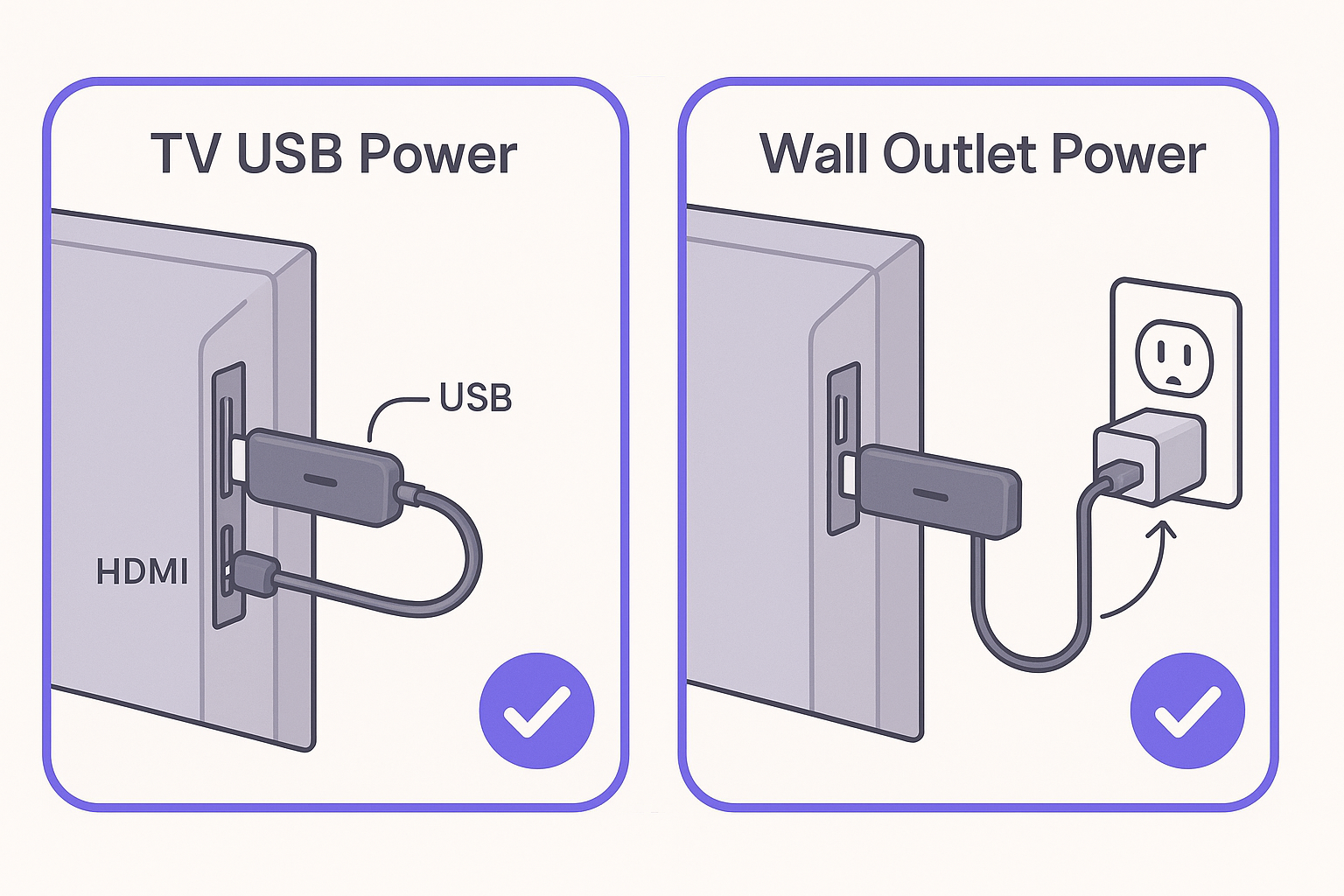
- A continuación, conecta el dispositivo de streaming a una fuente de energía. Es importante utilizar el cable USB que viene con tu Streaming Stick, ya que si utilizas otro cable, el dispositivo no se encenderá (error 022).
- Puedes conectarlo a un puerto USB de la TV, pero a veces estos no suministran suficiente energía.
- Si ves una advertencia de batería baja, conecta el reproductor Roku a un tomacorriente de pared (con el adaptador).
- Si tu dispositivo Roku tiene una luz, esta se encenderá o parpadeará.
Paso 2: enciende la TV y selecciona la entrada correcta
- Usa el control remoto de la TV y presiona el botón etiquetado Entrada o Fuente.
- Elige el número de puerto HDMI al que está conectado tu Roku (HDMI 1, HDMI 2, etc.).
- Espera unos 10 segundos para que la TV lo detecte. Sigue estos pasos si no ves ninguna imagen.
Paso 3: configura el control remoto Roku
- Control remoto por voz (tiene un ícono de micrófono o lupa): sigue las instrucciones en pantalla para emparejar.
- Control remoto Roku: inserta pilas nuevas. Si no funciona, quita las pilas, espera unos segundos y vuelve a colocarlas.
Paso 4: conecta el reproductor Roku a internet
- Elige tu idioma.
- Selecciona Inalámbrico y elige tu red wifi doméstica. Ingresa la contraseña.
- (Opcional) Si tu dispositivo Roku tiene un puerto Ethernet (algunos modelos lo tienen), puedes conectarlo a tu router con un cable.
- Haz clic en Conectar.
- Si la conexión falla, desenchufa el router y el reproductor Roku durante 10 segundos y, luego, vuelve a conectarlo. Sigue estos pasos si no puedes conectarte a internet.
Paso 5: actualiza y configura la pantalla
- Tu reproductor de streaming Roku buscará actualizaciones de software. Espere hasta que se instalen.
- Para 4K o HDR, asegúrese de que todas las conexiones y dispositivos conectados sean compatibles con HDCP 2.2. Obtén más información sobre qué tienes que hacer si ves un error.
- Ve a Configuración > Establecer tipo de pantalla y elige Automático para permitir que Roku elija la resolución correcta e ideal para tu TV.
Paso 6: (opcional) Haz que tu control remoto por voz controle la TV
- Algunos controles remotos por voz tienen la capacidad de encender y apagar la TV y controlar el volumen.
- Si aún no lo hiciste, puedes establecer esta configuración en otro momento en Configuración > Controles remotos y dispositivos > Controles remotos.
Note: On some TVs, the remote may control volume but not power, or vice versa.
Paso 7: activa la cuenta Roku
- Sigue las instrucciones en pantalla para activar tu cuenta. Necesitarás otro dispositivo, como un teléfono o una tableta, para verificar tu correo electrónico.
- Inicia sesión o termina de crear una cuenta Roku gratuita. Si necesitas ayuda, aprende a activar o crear una cuenta Roku.
¡Disfruta de tu reproductor Roku!
Con todos los pasos completos, tu dispositivo de streaming Roku está listo para usar. Puedes personalizar tu dispositivo al cambiar el paquete temático o el protector de pantalla, y puedes usar la Tienda de canales Roku para agregar nuevos canales de streaming, juegos y otras apps.
Last updated at 9/8/2026 12:19:27 AM
¿Te resultó útil este artículo?
Artículos relacionados
¿Necesitas más ayuda?

Soporte técnico con agentes
Ofrecemos soporte técnico con agentes para ciertos problemas y dispositivos.
Consulta las opciones de soporte técnico