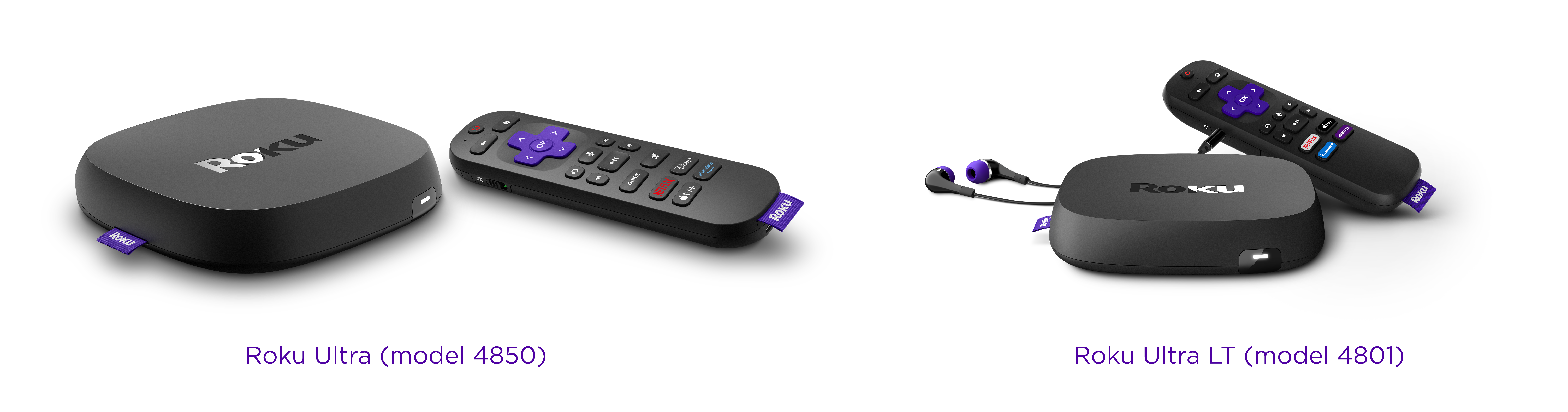
Roku Ultra (model 4850) and Roku Ultra LT (model 4801, sold exclusively at Walmart) are premium streaming players that connect to your TV, letting you stream movies and TV shows over the internet with little effort and an exceptional viewing experience. Just attach the included Premium High-Speed HDMI® Cable, connect your player to the internet, and complete the easy setup process. You will be enjoying your favorite streaming content in no time.
How do I get started?
You can review the Quick Start Guide to help you with your Roku streaming player. You can also browse the list of hand-picked articles at the bottom of the page to learn about various related topics, from troubleshooting technical issues to streaming your favorite content to personalizing your Roku experience.
Quick Start Guides
Common questions
Check out some of the common questions people ask when setting up a Roku player.
Set up your Roku player and remote
When you are ready, proceed with the simple setup process and activate your Roku player.
Resolve setup issues
Should you run into an issue during setup of your Roku player, you can find help in a variety of technical articles.
Setup
- What should I do if my Roku player will not power on?
- How do I resolve an issue when activating or linking my Roku player?
- What should I do if the red light is on or I see a “Your device is overheating” warning?
- How do I factory reset my Roku player?
Network
Picture and sound
- What should I do if I cannot see the picture on my TV?
- What should I do if I do not hear the sound?
- What should I do if I see a “HDCP Error Detected” message?
- Why is HDCP 2.2 important to playing 4K Ultra HD or HDR content?
- Why is 4K Dolby Vision not working?
- How do I resolve playback issues?
Remote control
Watch your favorite content
After your Roku player is set up and linked to your Roku account, it is time to start streaming the latest blockbuster movies, popular TV shows, and more.
Learn about Roku features
The Roku OS offers a number of great features to help you get the most from your Roku player and enjoy your streaming experience to the fullest.
- How do I use my voice to search and control my Roku player?
- How do I use volume modes for an even listening experience?
- How do I use headphones with my remote for Headphone Mode?
- How do I cast apps like YouTube or Netflix from my phone to my TV?
- How do I enable the text-to-speech screen reader?
- How do I enable closed captioning?
- How do I find my remote using lost remote finder?
Personalize your experience
Once you are comfortable using your Roku player to stream your favorite content, you can create a personalized Roku experience just for you.
Connect with Bluetooth®
Connect a Bluetooth-enabled device and you can listen to music, podcasts and other audio from your smartphone, tablet, or computer on your Roku player.
Get the Roku remote app
A great companion for your Roku experience is the free Roku remote app for iOS® and Android™. You can use it to search and control your Roku device with your voice, connect headphones for Headphone Mode, share personal photos and video on your TV screen, and much more.
Get the Roku App
Watch on the go with the free Roku App, available in the US for iOS® and Android™ and on the web at app.roku.com. You can watch free movies and TV shows, including live TV, Roku Originals, and your Roku Subscriptions on your phone, tablet, or computer, or on a TV with Google TV. Sign in with the same Roku account you use on your Roku device, and your Continue Watching list and Roku Subscriptions go with you.
Last updated at 11/13/2026 3:15:09 PM
Was this article helpful?
Related articles
Need more help?