Roku Search makes it easy to find what you want to watch on your Roku streaming device. If you already know what you want to watch, search by title, actor, or director. When you want to discover something new or browse a wider range of content, search popular genres like “Comedy” or “Action." To use Roku Search, use the on-screen keyboard, the Roku remote app, or voice search.
- Apps included in search results may vary by region: view Roku search partners for a list of the apps included by region
- Some apps and content require payment
- If you choose a movie or TV show on a app that is not installed on your Roku device, you'll be prompted to add the streaming app
- Search results for “over-the-air” broadcast television include programs currently airing along with future showings
Search on your Roku device
- Press Home
 on your Roku remote, then select Search from the Home Screen menu
- Use your remote to start typing the first few letters of the movie, TV show, actor, director, genre, or app that you're looking for
- Roku Search will update the results as you complete the word or phrase
- Select the entry to see more details including viewing options
Search on the Roku App
Search in the Roku App In the US, you can search for movies, TV shows, and live TV in the free Roku App on your phone, tablet, or Google TV. Search results include only content you can watch in the Roku App, such as free content and Roku Subscriptions.
Open the Roku App and select Search
Start typing the first few letters of the movie, TV show, actor, director, or genre you're looking for
The results will update as you type
Select a search result to see more details or start watching
Search using the Roku Remote App
Open the free Roku remote app on your phone and start typing the first few letters of the movie, TV show, actor, director, genre, or app that you're looking for
- Roku Search will update the results as you type
- Select a search result to see more details including viewing options
Search using voice
Hold down the Voice button in the Roku Remote App or on your Roku Voice remote and use voice commands like “show me action movies.” Use the free Roku remote app, to search for movies, TV shows, and more. Learn more about using your voice to search and control your Roku streaming device.

Note:
- Voice search and voice control is supported in English, German, Portuguese, French, and Spanish. To change the language on your Roku device, go to Settings > System > Language
- Voice search and voice control is supported in Argentina, Brazil, Canada, Chile, Columbia, Costa Rica, El Salvador, Germany, Guatemala, Honduras, Ireland, Mexico, Nicaragua, Panama, Peru, the United Kingdom, the United States, and Uruguay.
Search on the Roku App on a Google TV
Open the free Roku App on your mobile device or Google TV device and click the Search icon. Start typing the first few letters of the movie, TV show, actor, director, genre, or app that you're looking for
Roku Search will update the results as you type
Select a search result to see more details, including viewing options
Search for TV shows and movies on the web
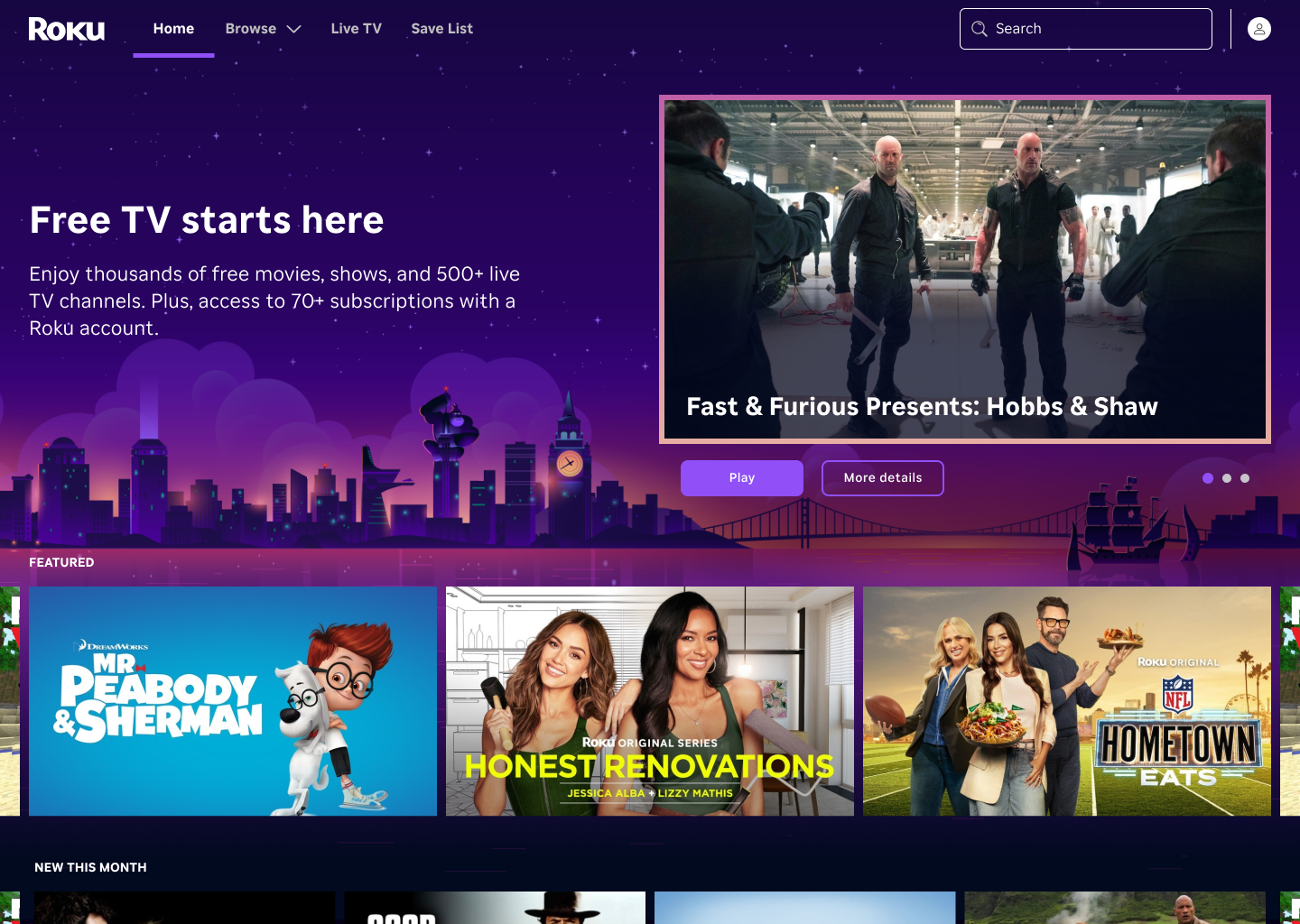
Search for your favorite movies and TV shows on the web at app.roku.com. Simply begin typing in the search bar.
Last updated at 11/10/2026 3:32:16 PM
Was this article helpful?
Related articles
Need more help?